Editing Source Status & Configuration
Modified on: 2025-05-15 11:26
TABLE OF CONTENTS
Source Status Overview
- Default Status: All new sources are created in Paused status.
- Enable Status:
- Required to populate content automatically.
- Requires specific setup steps (see Enable a Source below).
- Paused Status:
- Data remains accessible but will not update.
- Primary sources cannot be paused.
Activation Requirements
Before enabling a source to Enable, ensure:
- At least one category is configured with detailed fields.
- Implementation completion:
- For Supplier API: Generate API credentials (see Step 2: Generate API Credentials ).
- For FTP/Content Suite/Customized: Ensure connection setup is validated.
Enable a Source
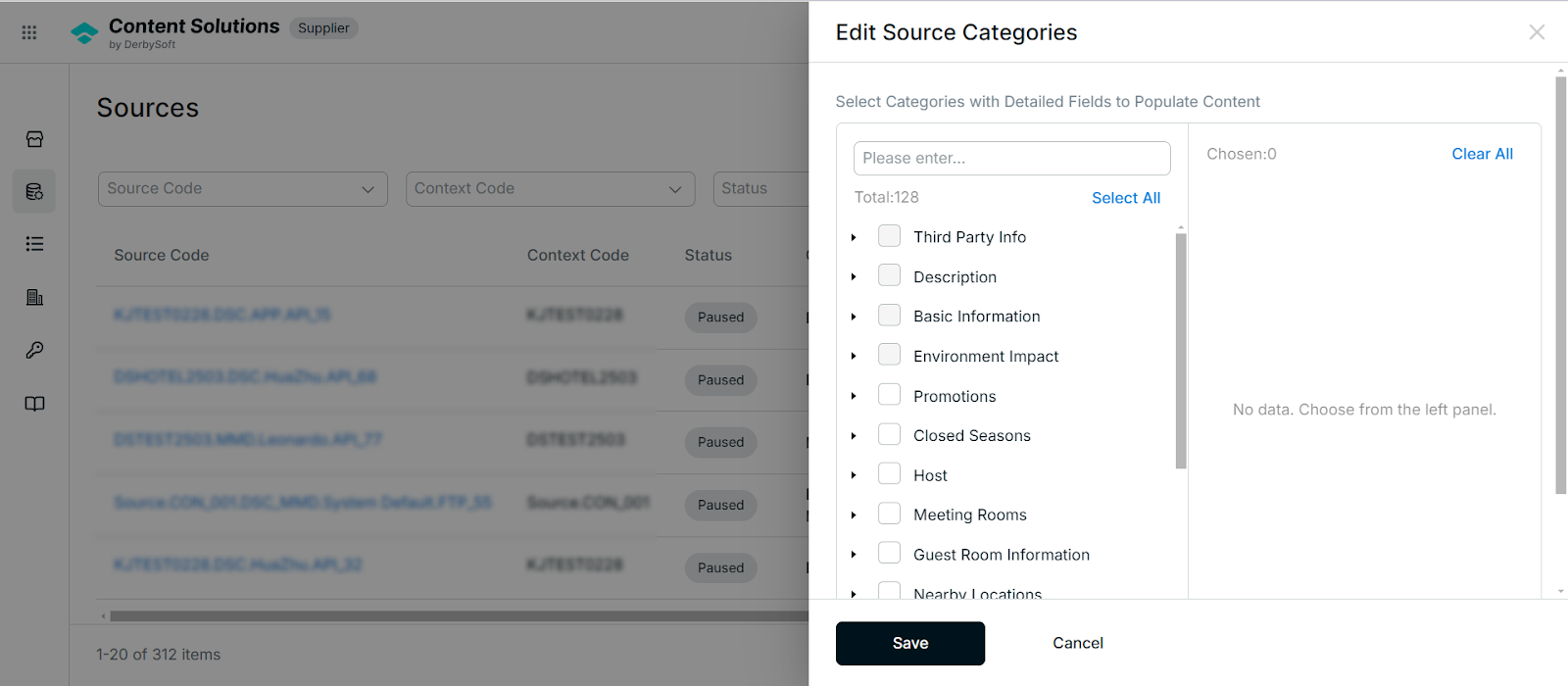
Step 1: Configure Categories
- Navigate to Sources:
- Go to Sources Tab > Select your source > Action
- Edit Categories:
- Click Edit Categories.
- Select at least one category and populate the required fields.
- Click Save to confirm.
Step 2: Generate API Credentials (Supplier API Only)
- Access Credentials:
- Go to the Credentials section of the platform.
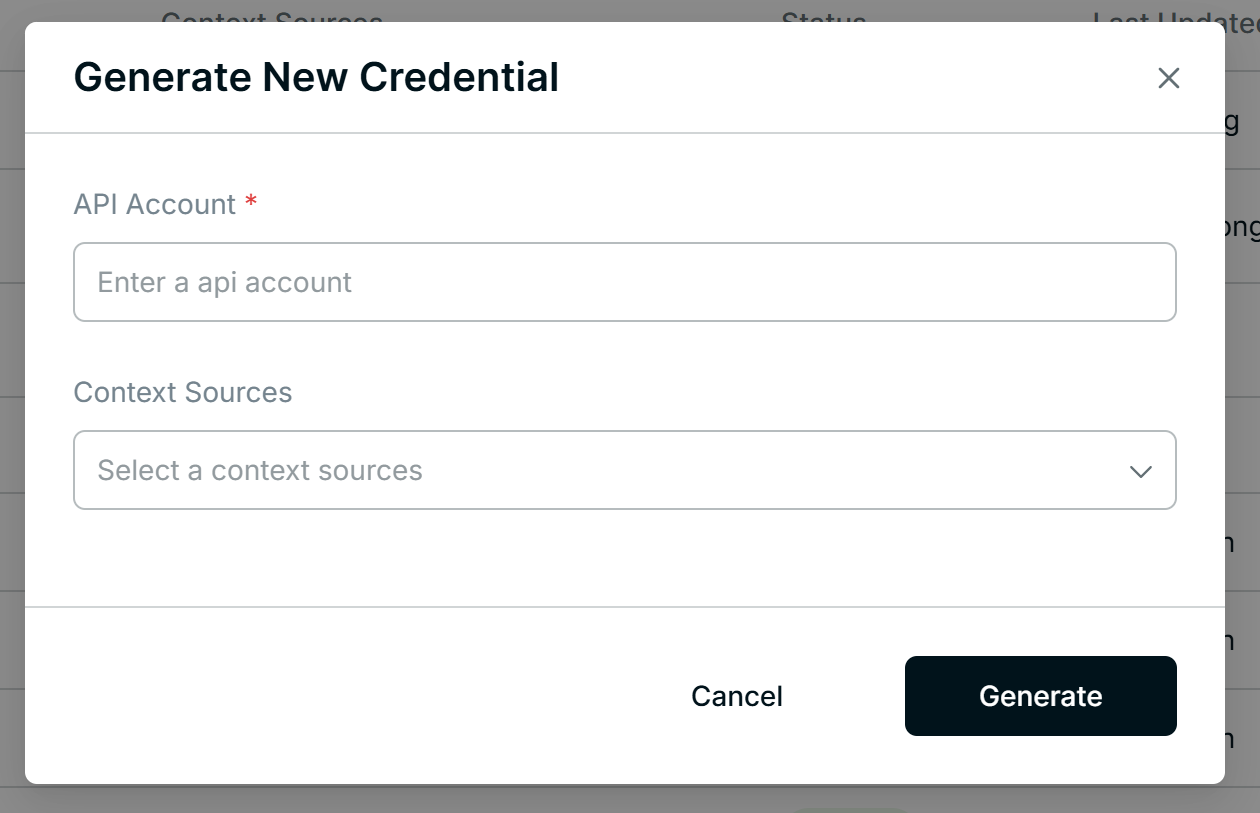
- Create Credential:
- Click Generate New.
- Configure details:
- API Account: Enter a unique identifier.
- Context Sources:
- Link the credential to one or multiple sources (avoid using the same credential for multiple sources under the same context).
- Save Credential: Click Generate to finalize.
Step 3: Enable the Source
- Return to SourcesTab:
- Locate your source in the list.
- Enable the Source:
- Click Enable in the Action column.
Related User Guides:
What is Property
Property Management
What is Context
Context Onboarding Procedures
How to Create a Context
View Existing Contexts
What is Source
Create a Source
Category Assignment
Credential Management
Did you find it helpful? Yes No
Send feedbackSorry we couldn't be helpful. Help us improve this article with your feedback.