Property Management
Modified on: 2025-09-24 13:52
TABLE OF CONTENTS
- Filtering Properties
- Export Property List
- Export Property Content
- Pausing/Enabling Properties
- Related User Guides:
Filtering Properties
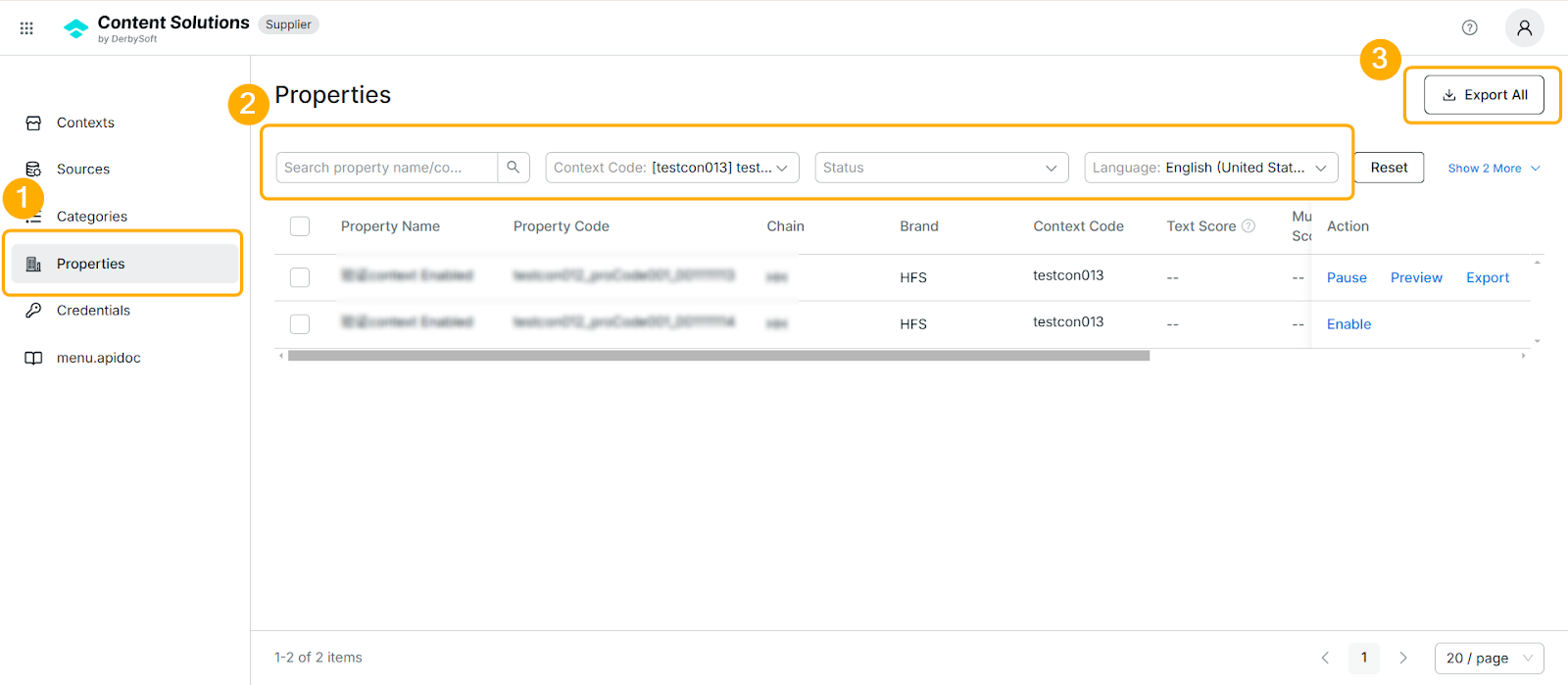
Use the filters at the top of the Properties Page to narrow down results:
- Context Code:
- Default: The first code in alphabetical order is auto-selected.
- Status: Filter by Enabled or Paused.
- Chain: Filter by affiliated chain (e.g., hotel chains).
- Brand: Filter by associated brand.
- Language:
- Default: EN-US (English - United States).

Export Property List
Export a property list based on selected filters following the format shown in the sample template: PropertyList_20250310.xlsx
- Go to the Properties Page.
- Set filters to narrow your list.
- Examples: Status (Paused/Enabled), Content Code
- Click Export All (top-right corner).
Export Property Content
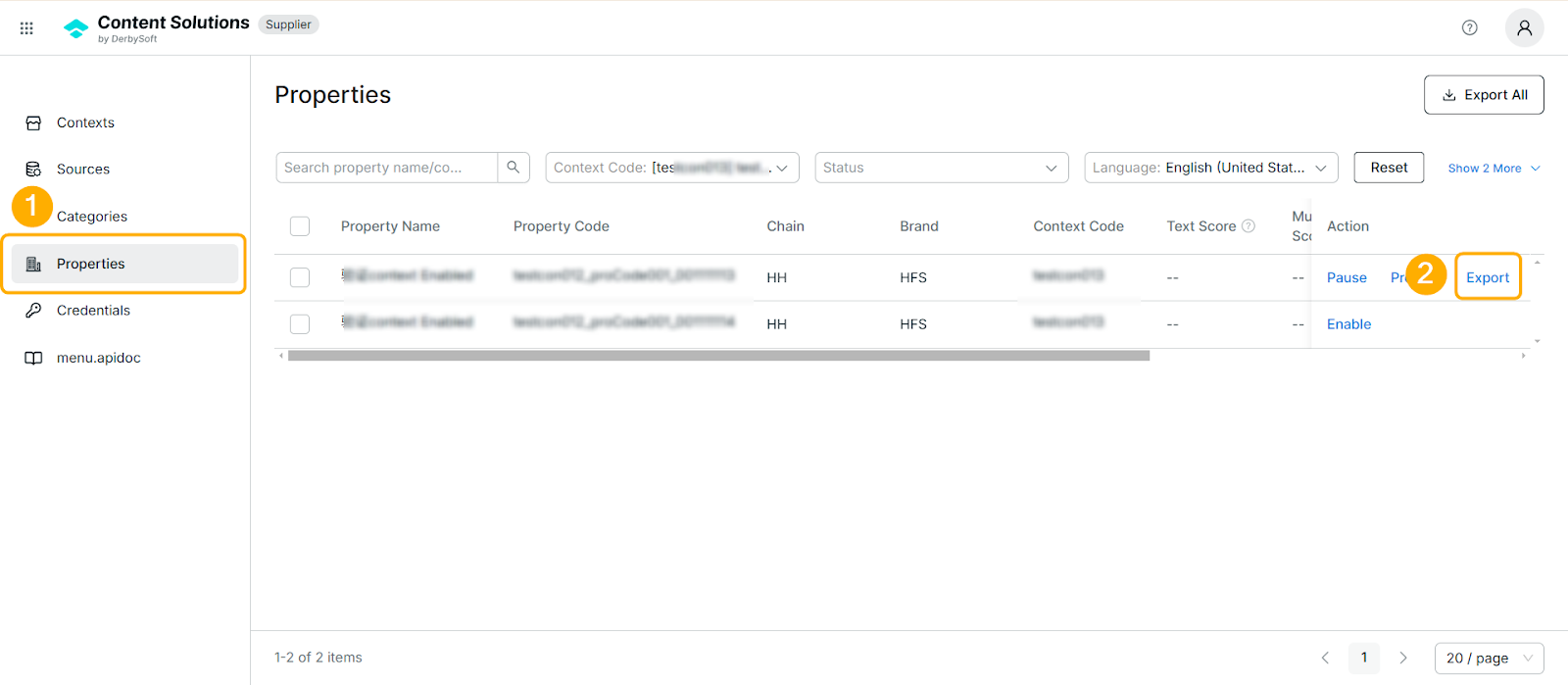
Exports the selected property content following the format shown in the sample template: Distributor - Property_Content_Template_NEW.xlsx.
- Locate the property in the list.
- Click Export in the Action column of the row.
Pausing/Enabling Properties
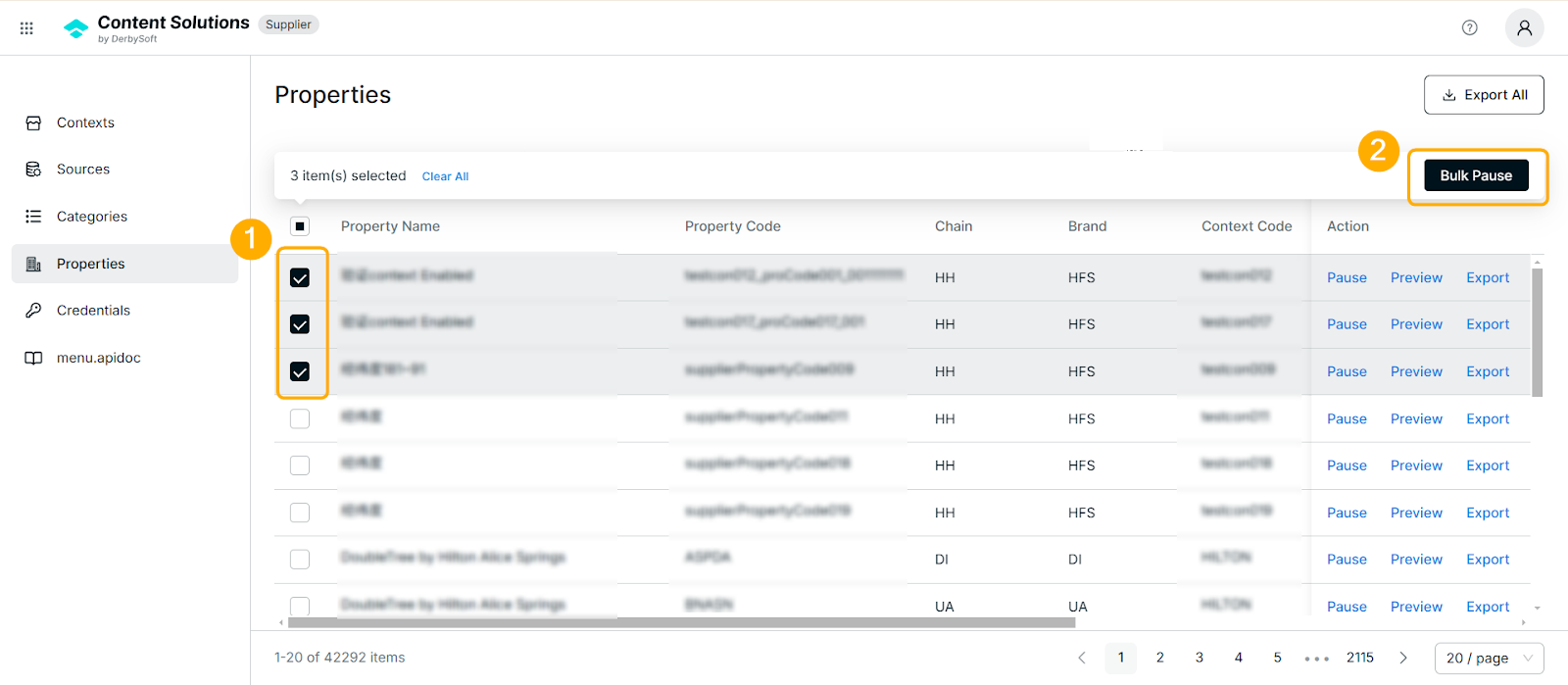
Paused properties are blocked from distribution; enabled properties are shared with partners
- Bulk Actions:
- Check the boxes for target properties.
- Click Bulk Pause or Bulk Enable (top toolbar).
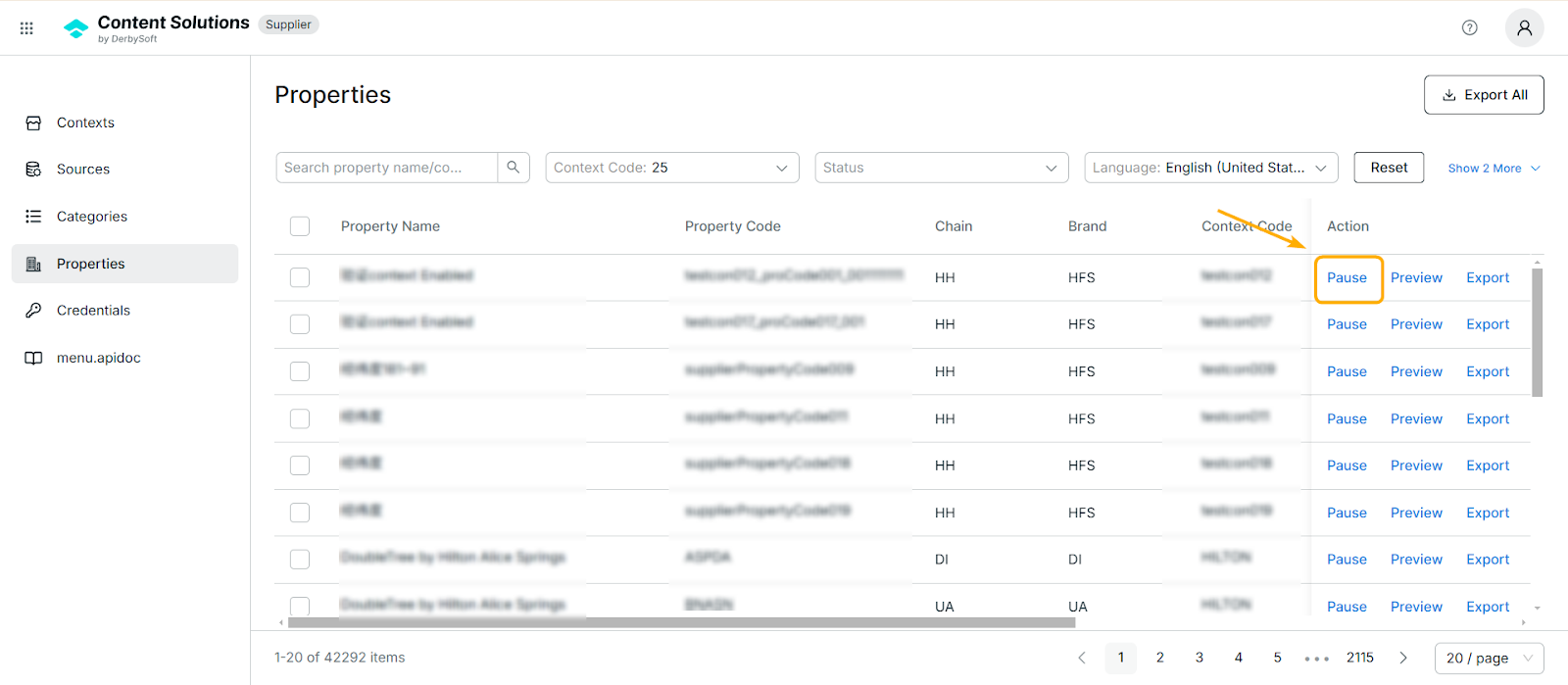
- Single Property:
- Use the Pause or Enable button in the Action column.
Related User Guides:
What is Property
What is Context
Context Onboarding Procedures
How to Create a Context
View Existing Contexts
What is Source
Create a Source
Editing Source Status & Configuration
Category Assignment
Credential Management
Did you find it helpful? Yes No
Send feedbackSorry we couldn't be helpful. Help us improve this article with your feedback.