How to Create a Context
Modified on: 2025-05-15 11:22
TABLE OF CONTENTS
- Step 1: Navigate to Create Context
- Step 2: Create a Context
- Step 3: Source Creation
- Step 4: Source Category Configuration (Optional)
- Step 5: Source Implementation
- Related User Guides:
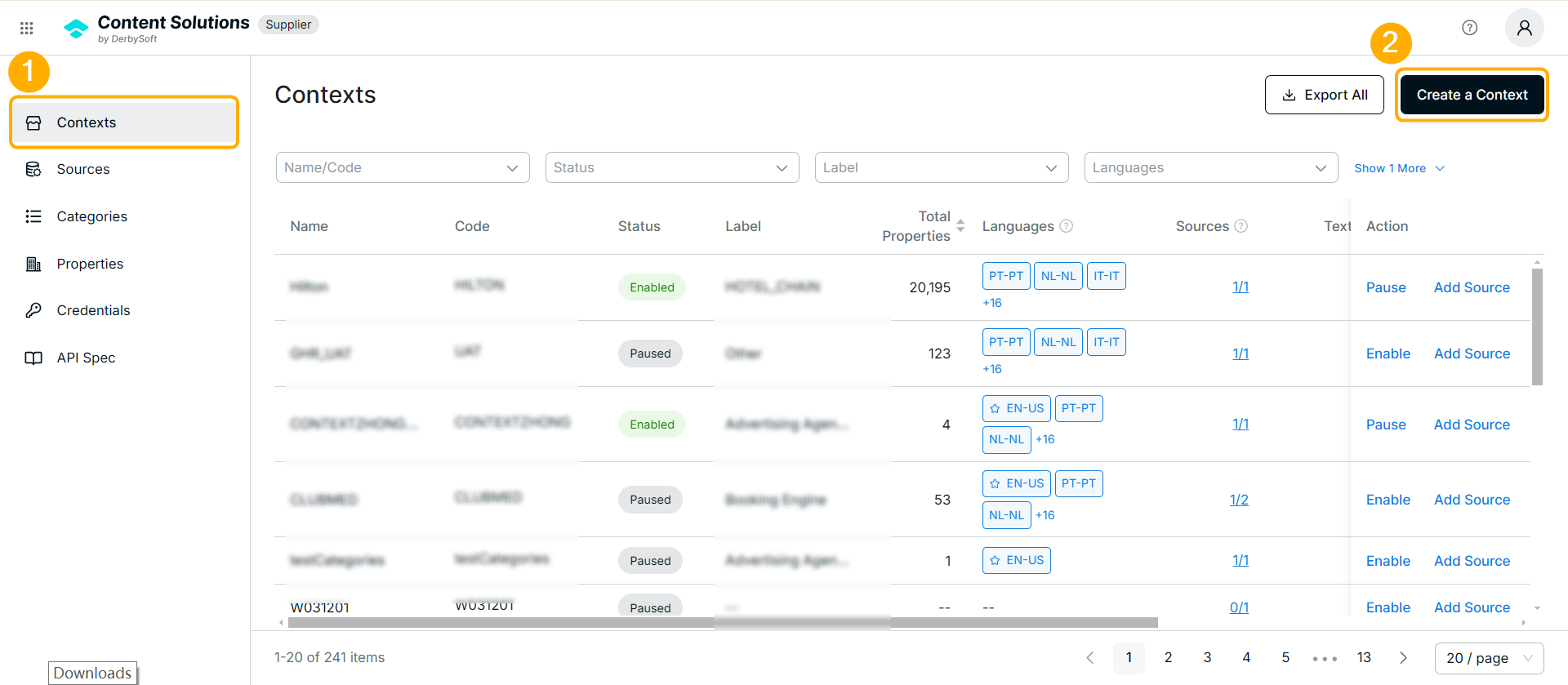
Step 1: Navigate to Create Context
Go to Contexts > Create a Context
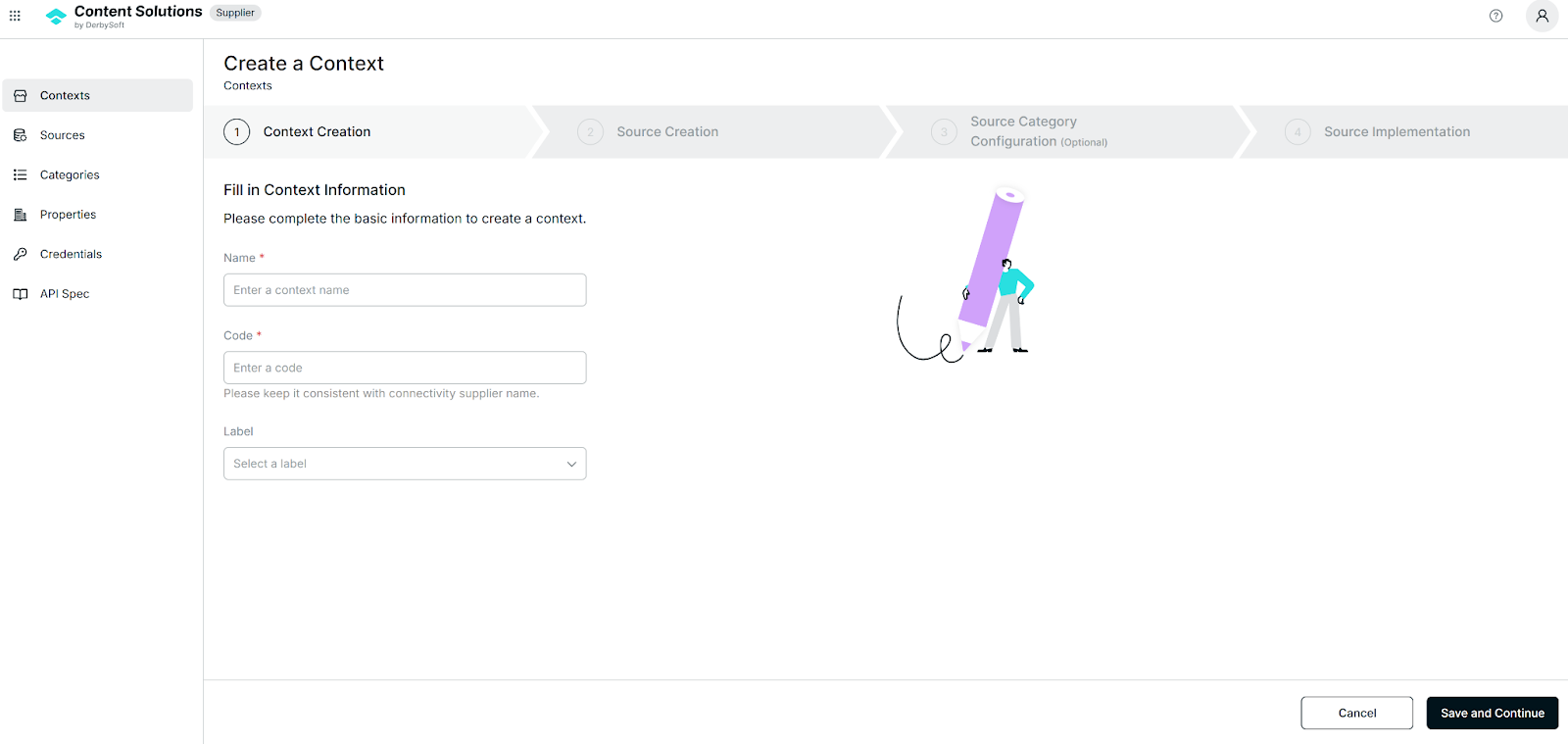
Step 2: Create a Context
- Context Name: Provide a descriptive name for the context (e.g., "Hilton" or "IHG").
- Context Code: The unique identifier for the context. If applicable, match this code with the connectivity supplier code.
- Label (Optional): Assign a category label to the context to support future data analysis.
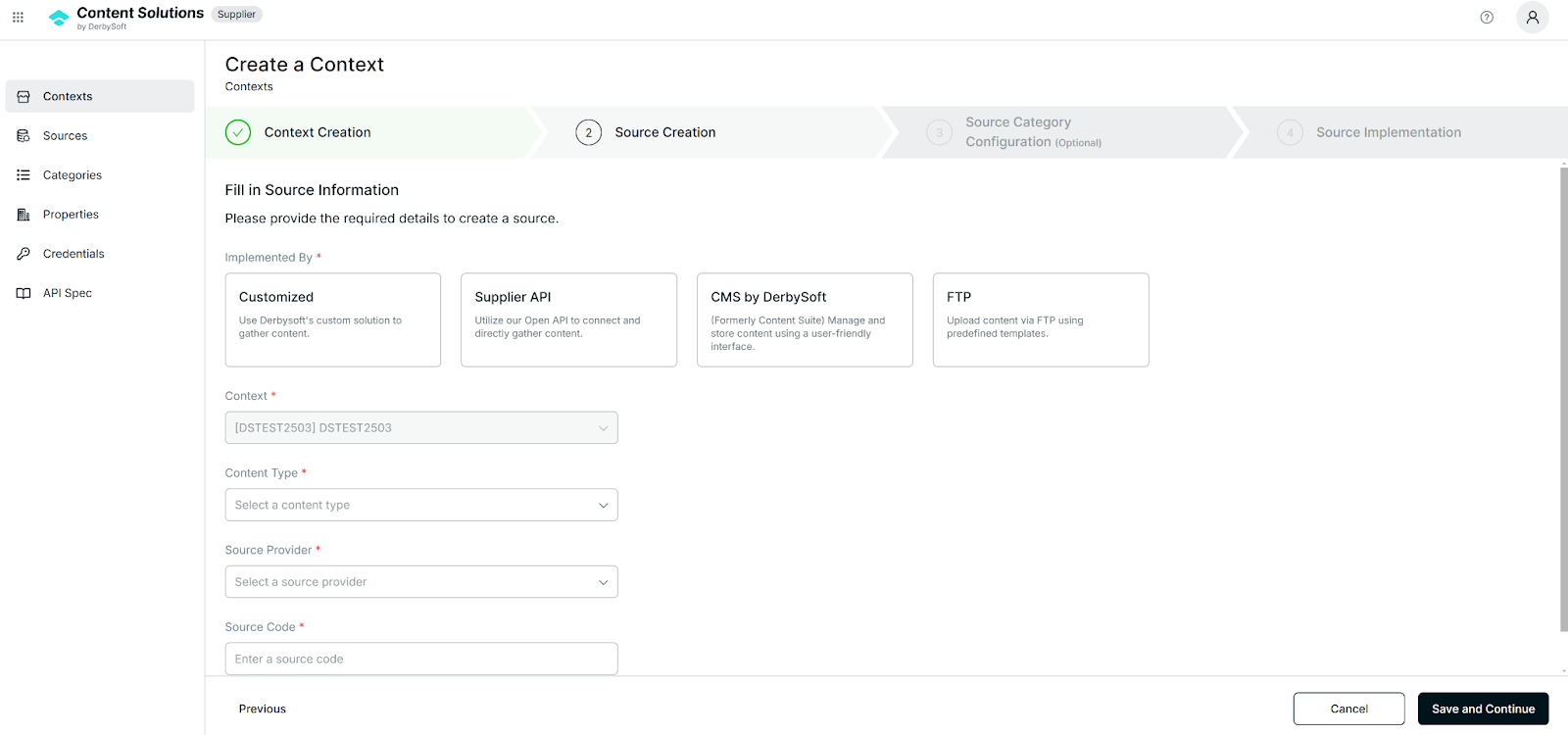
Step 3: Source Creation
One Context can support multiple sources, but each source type has specific implementation rules and limitations:
| Implemented By | Customized | Supplier API | CMS by DerbySoft | FTP |
|---|---|---|---|---|
| Customized | √ | × | × | × |
| Supplier API | × | √ | × | √ |
| CMS by DerbySoft | × | × | √ | × |
| FTP | × | √ | × | √ |
- Implemented By
- Customized: DerbySoft connects to a customized API.
- Supplier API: The source connects to DerbySoft through the DerbySoft Content Supplier API.
- CMS by DerbySoft: (Formerly known as Content Suite) allows direct management of content through DerbySoft's CMS.
- FTP: The source connects through a customized file.
- Limit: Each context can have a maximum of 1 FTP source.
- Content Type: Specify whether the source will provide only descriptive content or also include multimedia content (e.g., images).
- Source Provider (For Customized and Supplier API only): Enter the name of the source provider.
- Source Code: The unique identifier for the source.
- The system generates this code automatically based on the implementation type but allows manual updates. (System Code rule is “ContextCode_ContentType_SourceProvider_ImplementBy_01”, end with two random number)
| Context Code | Content Type | Source Provider | Implement by | Source Code |
|---|---|---|---|---|
| DSTEST01 | Descriptive Content and Multimedia | ABC | Supplier API | DSTEST01.DSC_MMD.ABC.API_01 |
| DSTEST02 | Descriptive Content | DEF | Customized | DSTEST02.DSC.DEF.CUS_02 |
| DSTEST03 | Descriptive Content | GHI | FTP | DSTEST03.DSC.GHI Default.FTP_03 |
| DSTEST04 | Descriptive Content and Multimedia | JKL | CMS by DerbySoft | DSTEST04.DSC_MMD.JKL.CON_04 |
- Primary Source: Specify whether this is the primary source for property creation.
- Each context can have only one primary source for creating properties.
- Primary Language: Set the default language for the primary source’s property content.
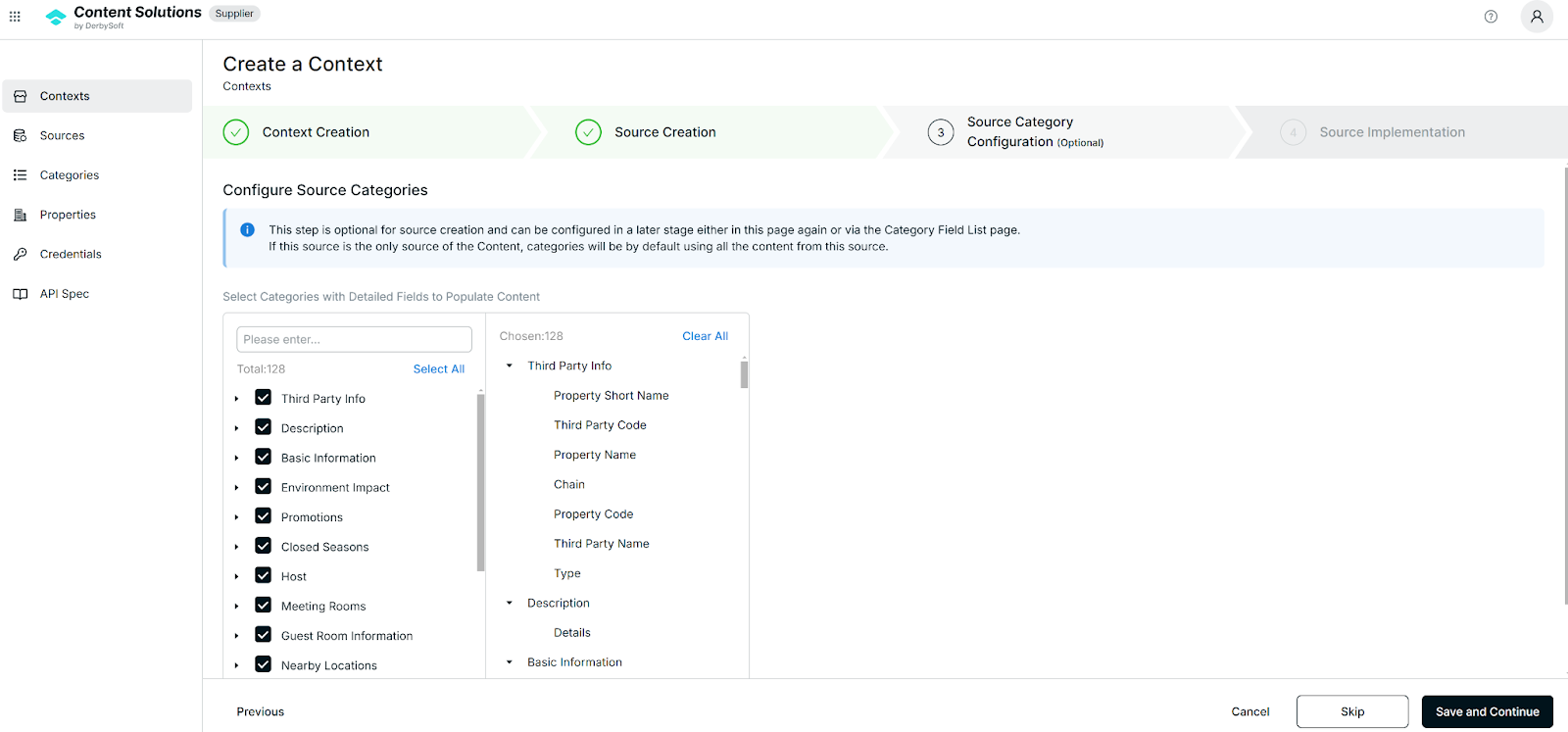
Step 4: Source Category Configuration (Optional)
- Purpose: Defines the collection rulesfor the source data.
- If Basic Information is selected, the system will collect data from the source.
- Otherwise, the source data will not be collected.
- Configuration Flexibility:
- This step is optional during source creation.
- You can configure this later, either on this page or via the Category Field List page.
- If this source is the only source of content, the system will default to using all content from this source.
Step 5: Source Implementation
- Customized Source: Proceed with offline implementations.
- Supplier API Source:
- Navigate to Credentials.
- Generate new credentials.
- The API Account can be the same as the Context Code, such as HILTON. If multiple credentials are required for the same context, append a sequential number to the account name (e.g., HILTON01, HILTON02).
- Apply the credentials to the new Supplier API source.
Related User Guides:
What is Property
Property Management
What is Context
Context Onboarding Procedures
View Existing Contexts
What is Source
Create a Source
Editing Source Status & Configuration
Category Assignment
Credential Management
Did you find it helpful? Yes No
Send feedbackSorry we couldn't be helpful. Help us improve this article with your feedback.