Export & Import Property Mapping
Modified on: 2026-05-25 13:44
To improve mapping efficiency and reduce manual editing in the portal, Content Solutions now supports bulk export and import for mappings in Pending status.
OPS users can export pending mappings into Excel files, process and update the data offline, then bulk re-import the results back into Content Solutions.
TABLE OF CONTENTS
Bulk Export
Export mappings in Pending status for offline processing and bulk updates.
Instructions
Step 1. Go to Tools > Property Mappings
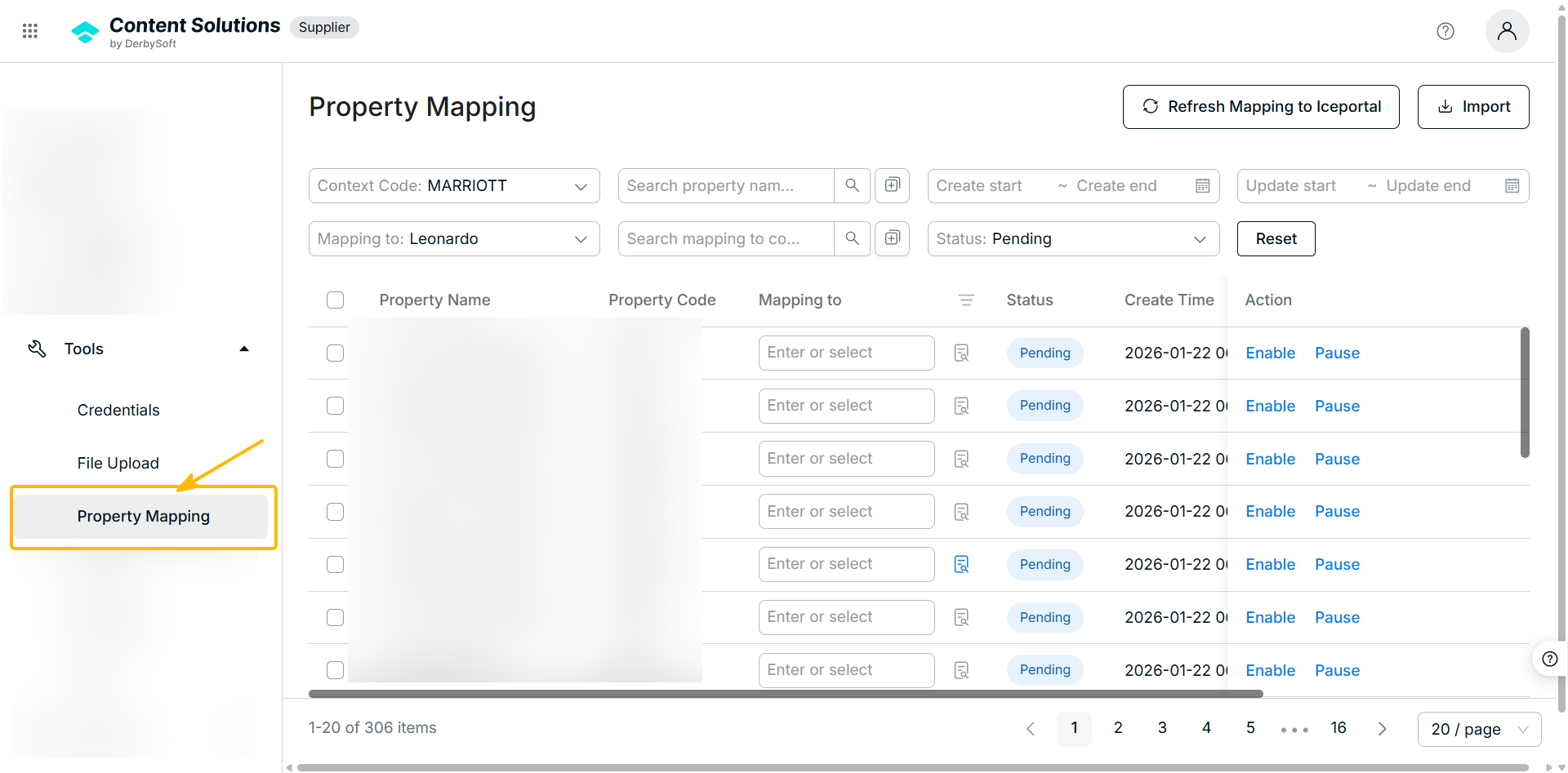
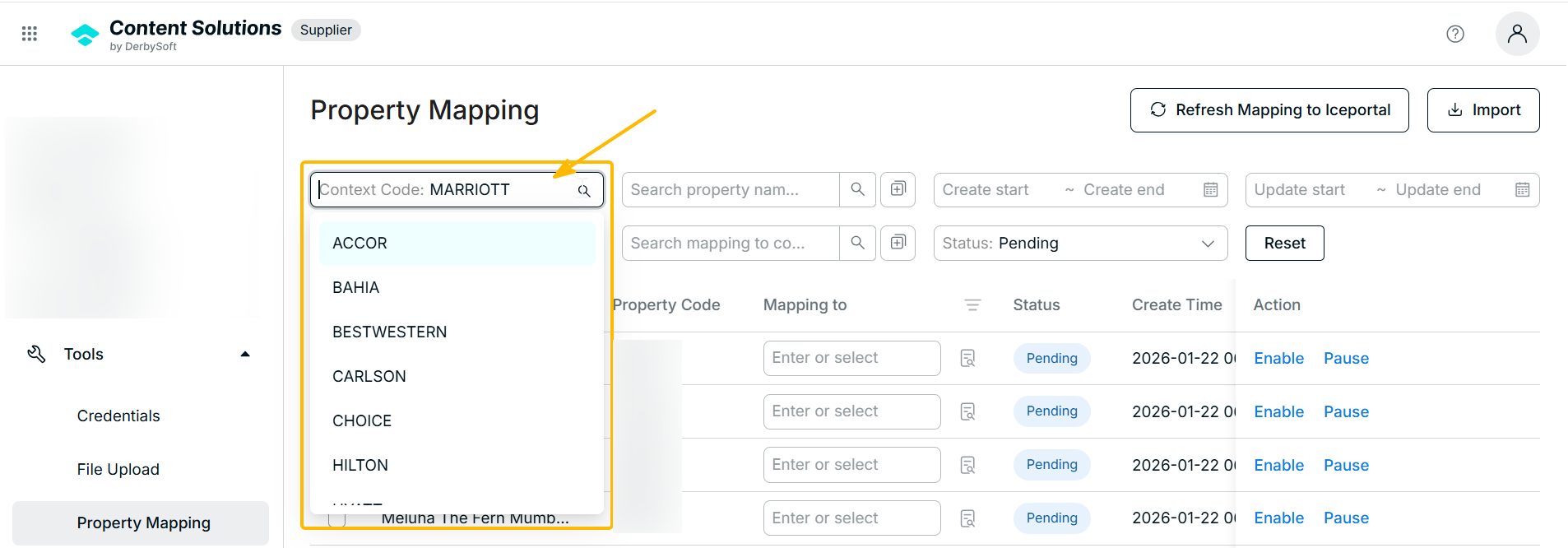
Step 2. Select the Context Code
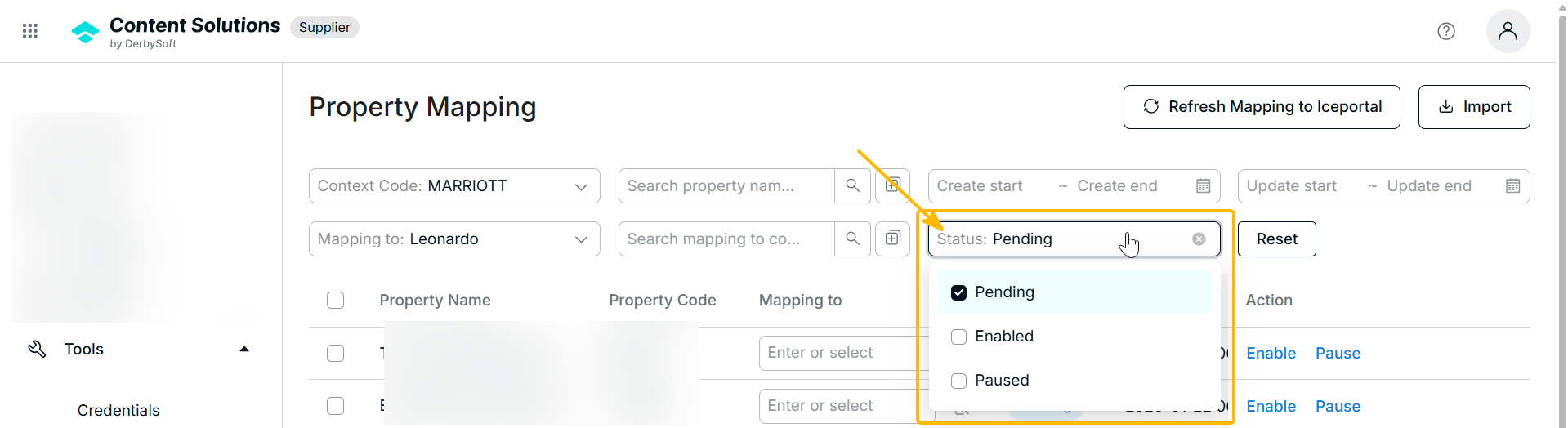
Step 3. Filter mappings by Pending status
Step 4. Select the mapping records to export
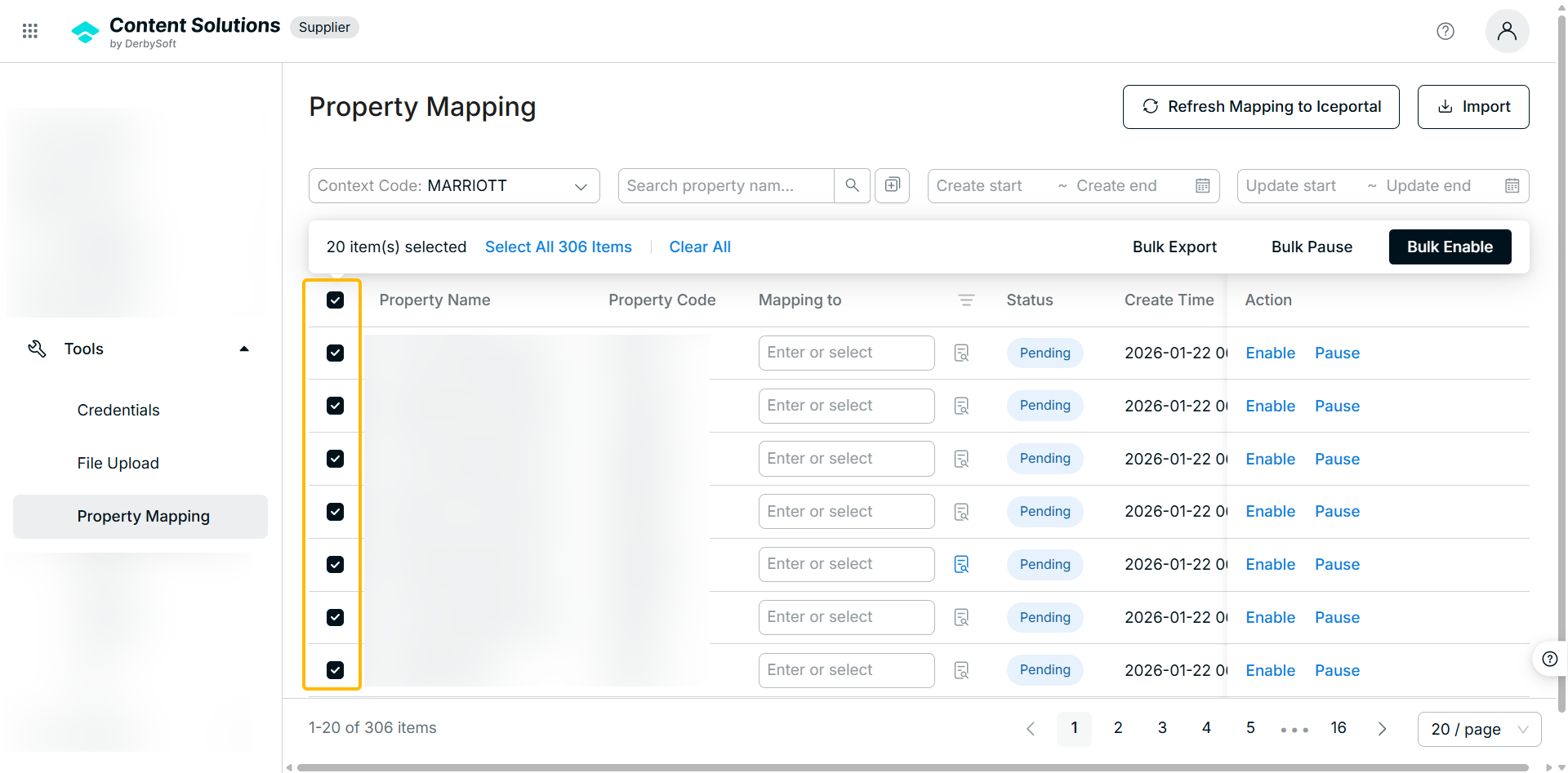
Step 5. Click Bulk Export
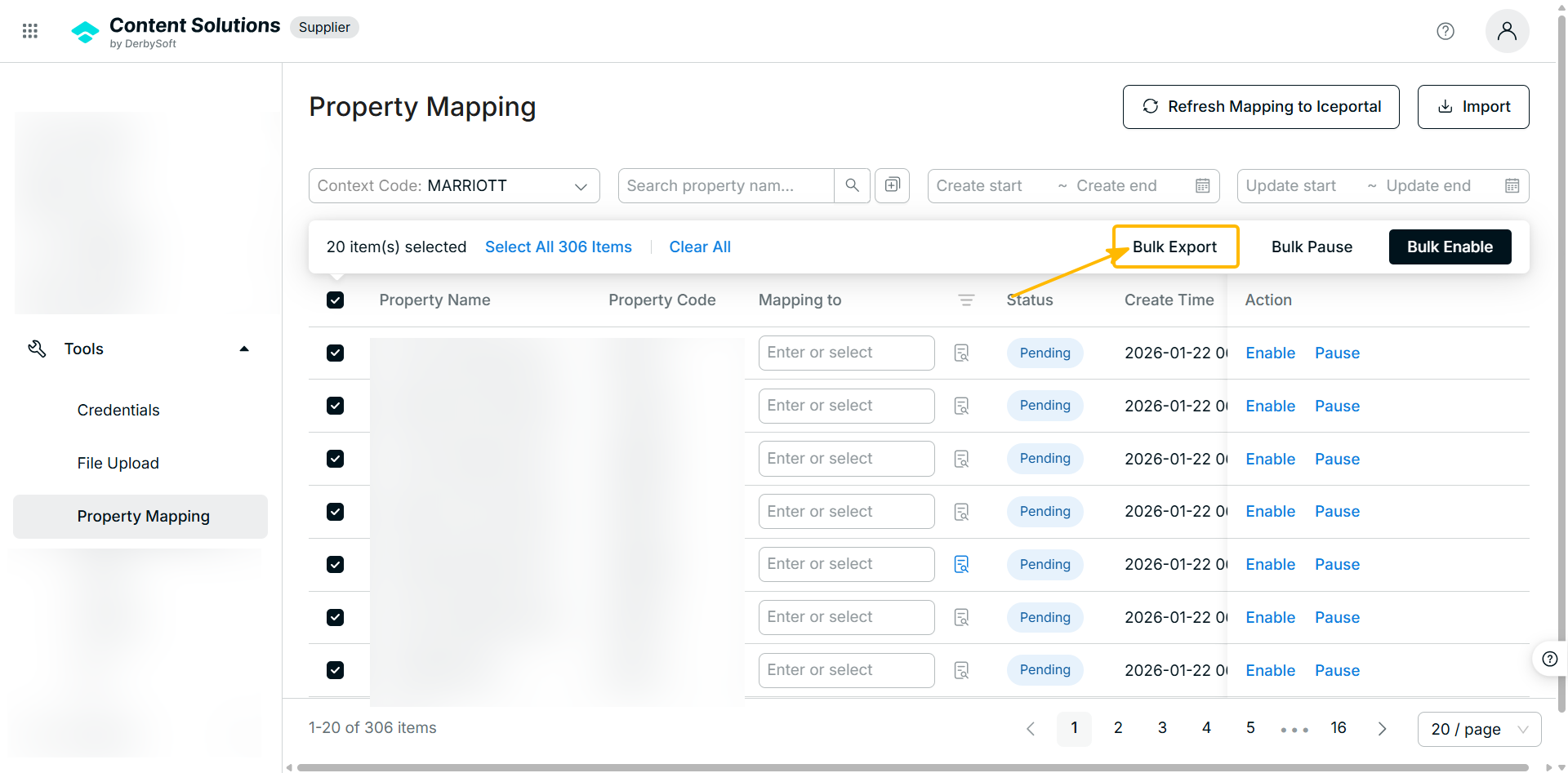
The system will generate and download an Excel file containing the selected mapping records.
Bulk Import
Introduction
After processing the exported file offline, OPS users can bulk import the updated mappings back into Content Solutions.
This feature helps accelerate mapping operations and reduces repetitive manual updates in the portal.
Pre-requirements & Validation Rules
- Data Integrity Protection: To avoid unintended overwrites, records currently in Enabled or Paused status will be automatically skipped during import processing.
- Mandatory Fields Validation :All required fields must be completed before import.
- If any mandatory field is missing, that specific row will fail validation and will not be processed.
- File Size Limitation: The maximum supported import file size is 10 MB.
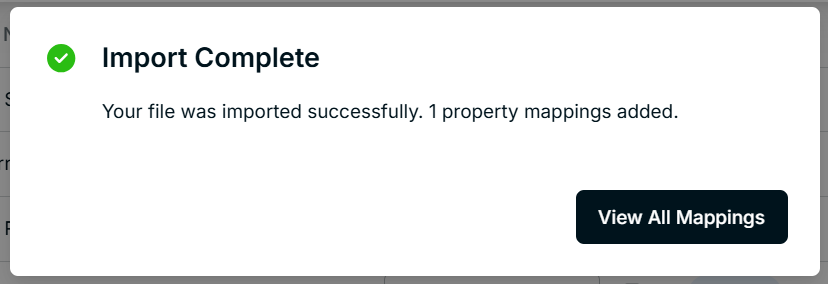
- Import Result Summary: After the import is completed, the system will generate a summary report including:
- Total successful updates
- Total failed records
- Failure reasons for invalid entries
Instructions
Step 1. Go to Tools > Property Mappings
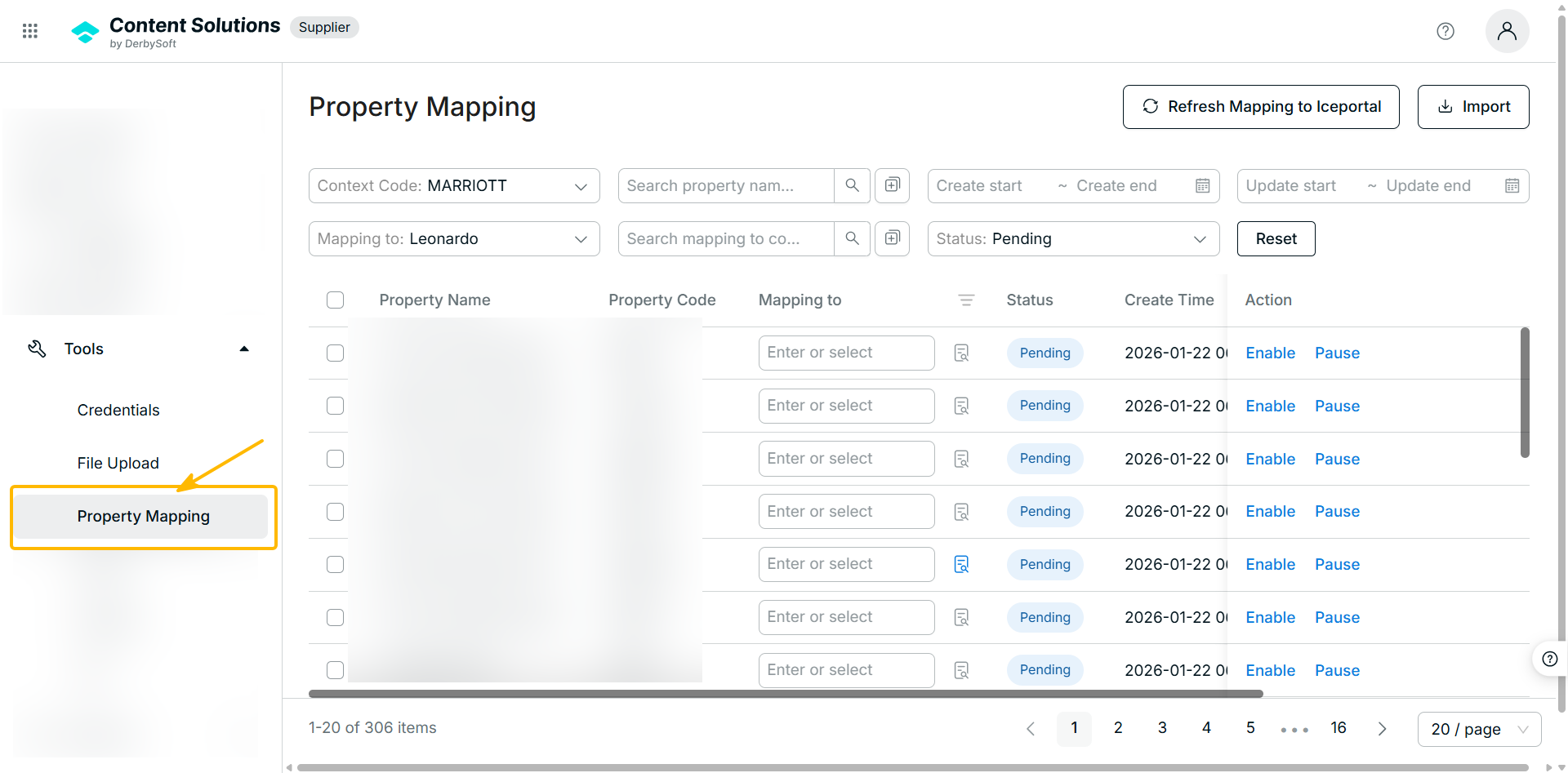
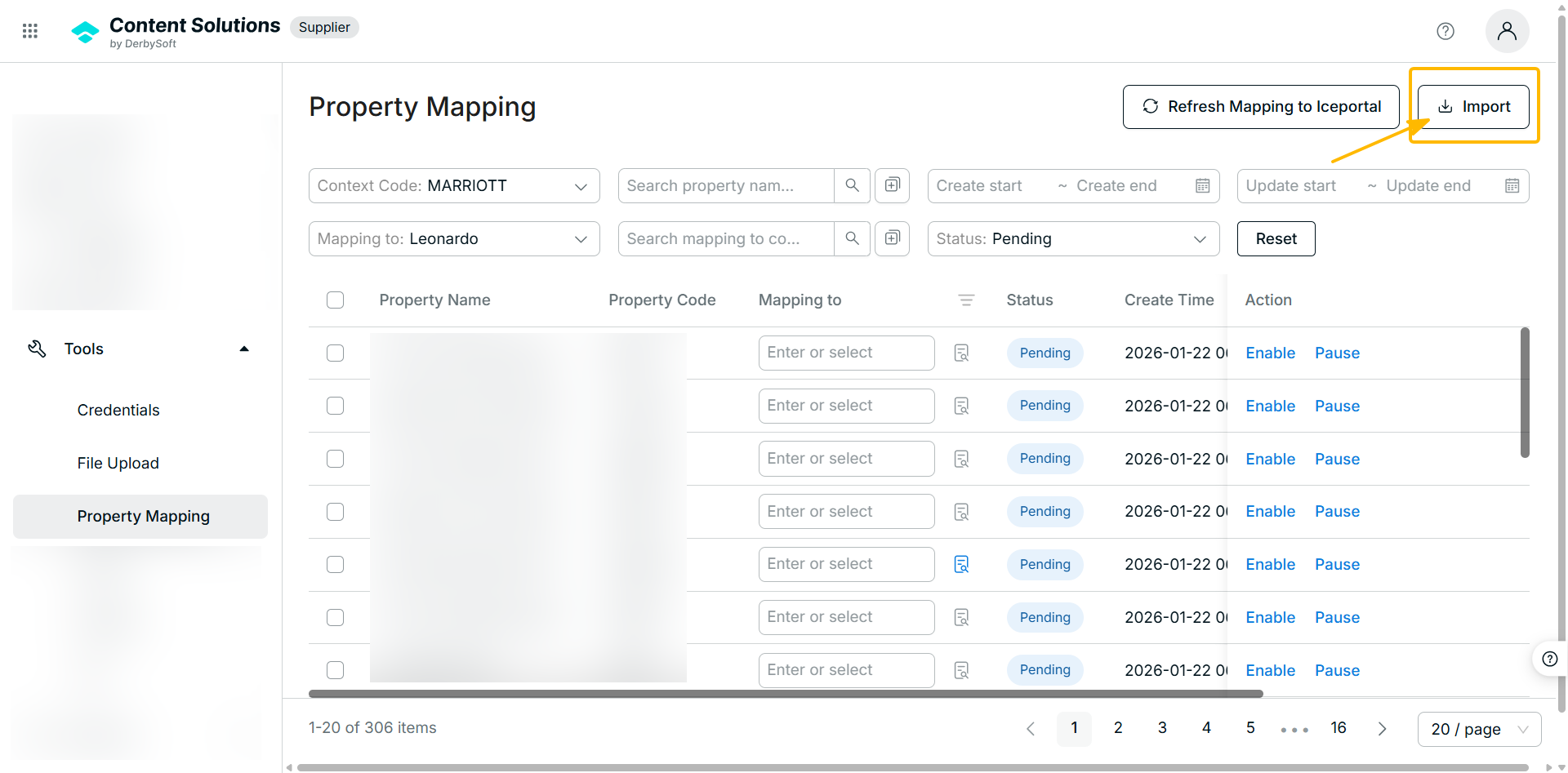
Step 2. Click Import
Step 3. Download or use the provided import template
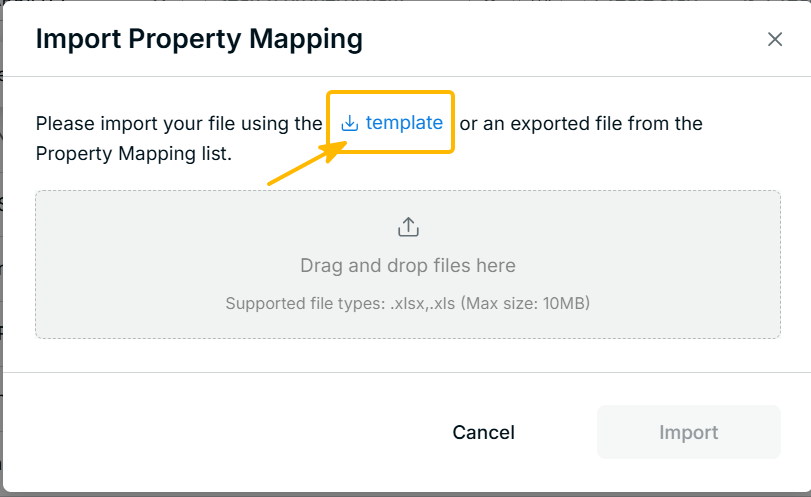
Step 4. Drag and upload the completed Excel file
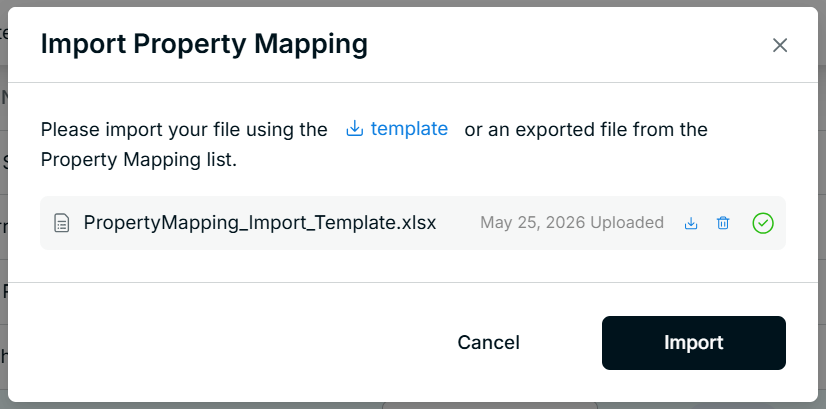
Step 5. Review the import result summary after processing is completed
Related User Guides:
Did you find it helpful? Yes No
Send feedback