Property Code Mapping & Refresh Image
Modified on: 2026-05-25 11:37
The Property Code Mapping tool allows you to connect your Supplier Property Codes with external content platforms such as Leonardo and Iceportal.
It supports AI-assisted and manual mapping, mapping synchronization, bulk management, and image updates to ensure property information remains accurate and up to date across connected systems.
TABLE OF CONTENTS
- Accessing the Tool
- Understanding Mapping Statuses and Actions
- How to Map Properties
- How to Bulk Enable/Pause Property Mappings
- How to Bulk Remap (Leonardo Only)
- How to Bulk Refresh Image
- Related User Guides:
Accessing the Tool
- Log in to the Content Solutions Supplier Interface.
- Navigate to the menu path: Supplier menu > Tools > Property Mapping.
- You will see a table with property mapping details such as:
- Property Code
- Mapping to
- Created Time / Update Time
- Status
- Action buttons (e.g., Enable, Refresh Image, Remap, Pause)
Understanding Mapping Statuses and Actions
- Pending: No mapping yet or AI mapping not enabled.
- Enabled: AI, or manual mapping is active.
- Paused: Mapping connection stopped
How to Map Properties
Mapping to Leonardo
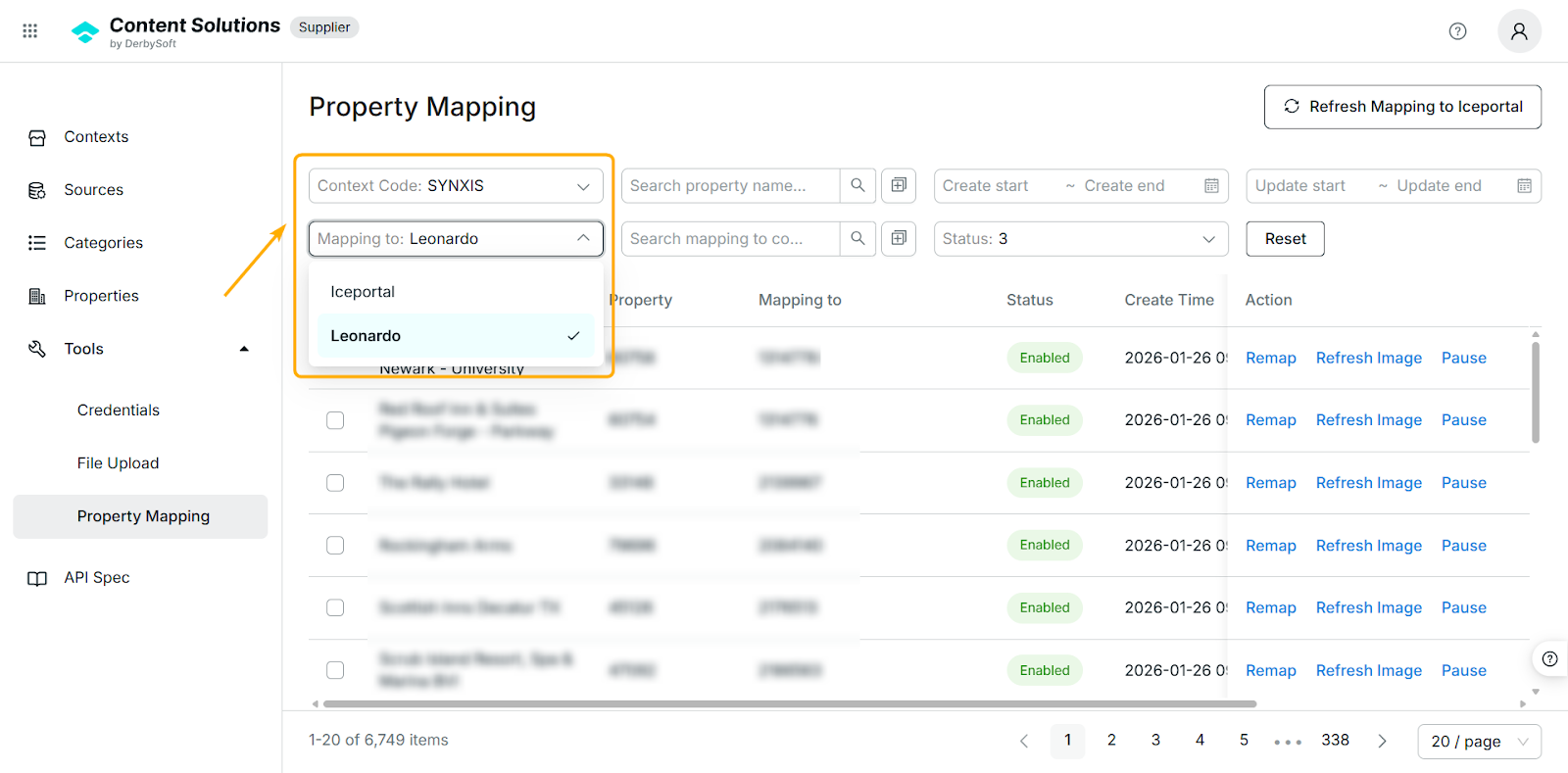
Step 1. Choose Context Code & Mapping Target
- Select the context code
- Choose mapping to Leonardo
Step 2. Map Pending Properties
You will see two available mapping options:
Option 1: Map Using AI Suggestions
- Review the AI-suggested matches.
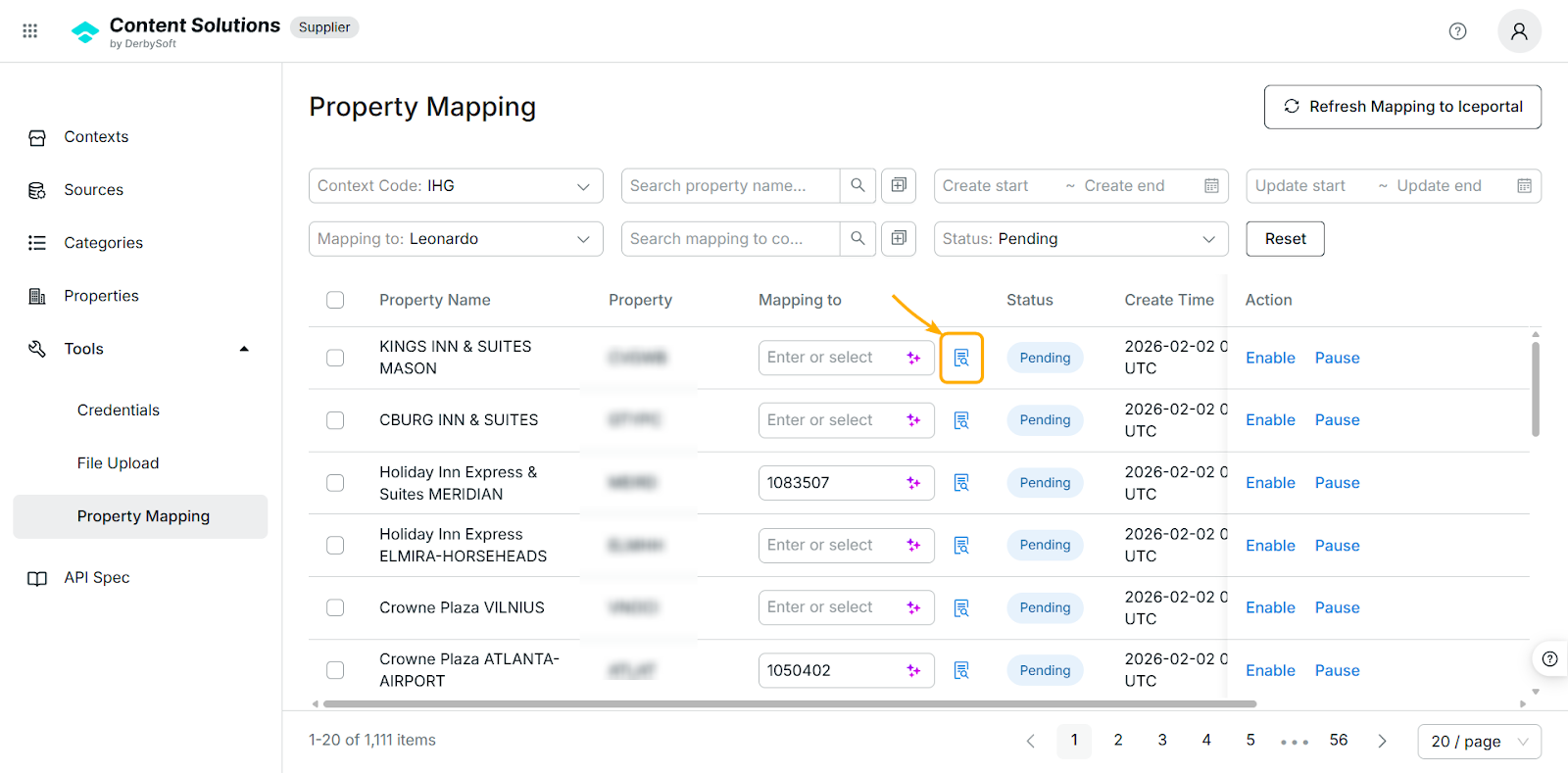
- Detailed information is displayed to help you verify the correct property.
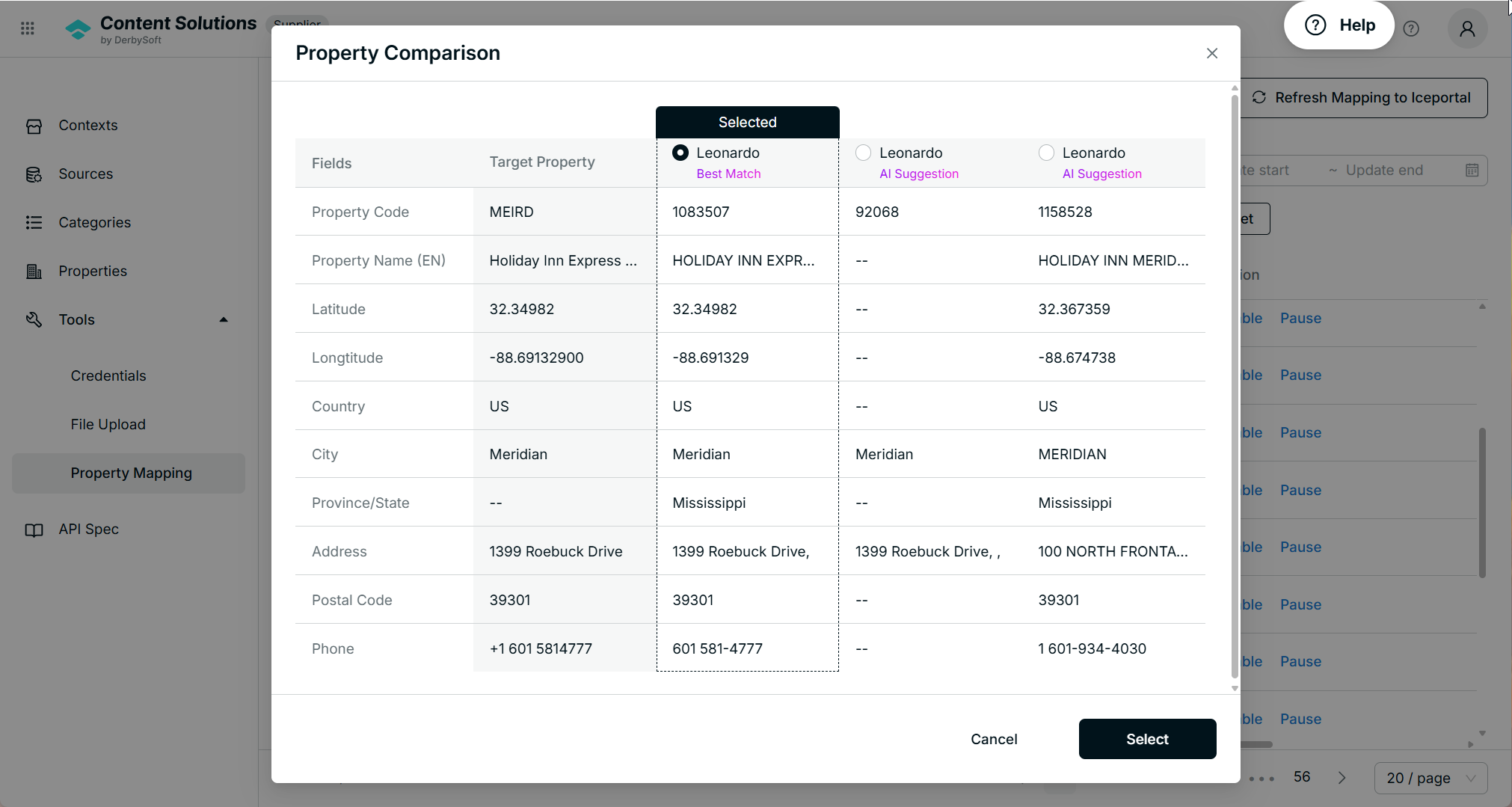
- Select the correct suggested property.
- Click Enable.

Important:
- Best Match = the system’s recommended property.
- If no option is labeled Best Match, review carefully — we recommend using Manual Mapping to ensure accuracy.
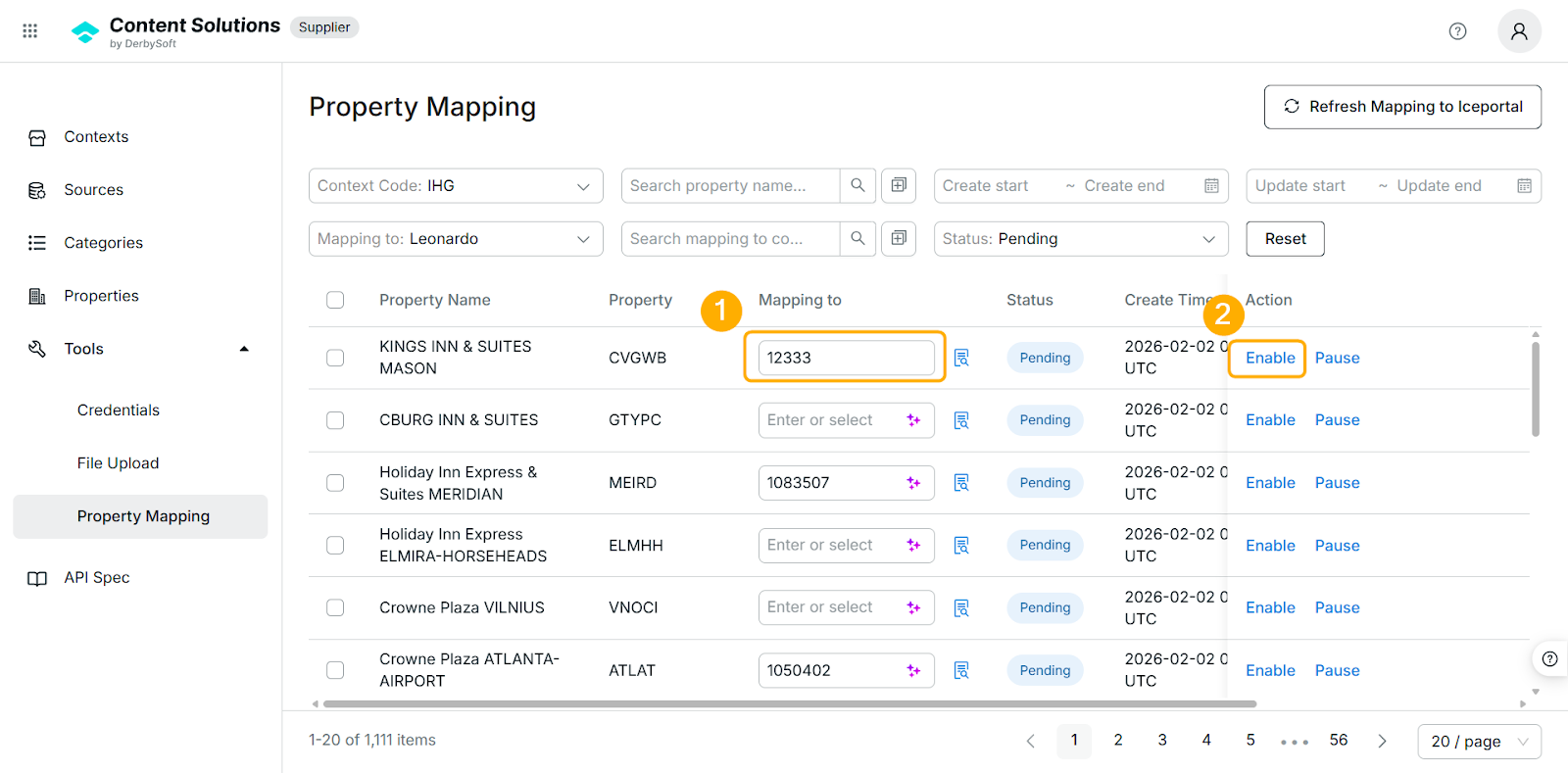
Option 2: Manual Mapping
If the correct property is not listed in the AI suggestions:
- Manually enter the correct Leonardo Property Code.
- Click Enable.
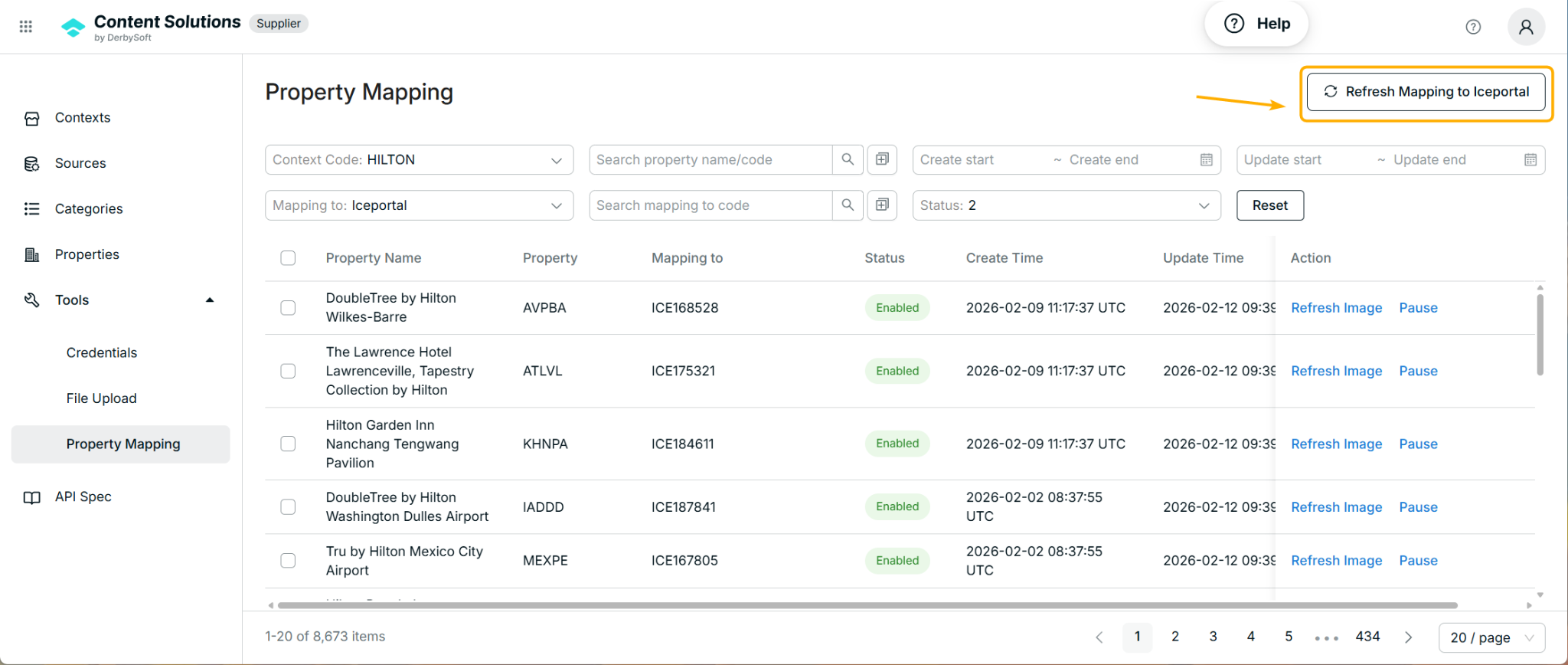
Mapping to Iceportal
Currently, mapping to Iceportal is synchronized directly from the Iceportal system.
To Synchronize Mapping:
- Click Refresh Mapping to Iceportal.
- The system will synchronize mapping data from Iceportal.
Please wait a few moments for the process to complete.
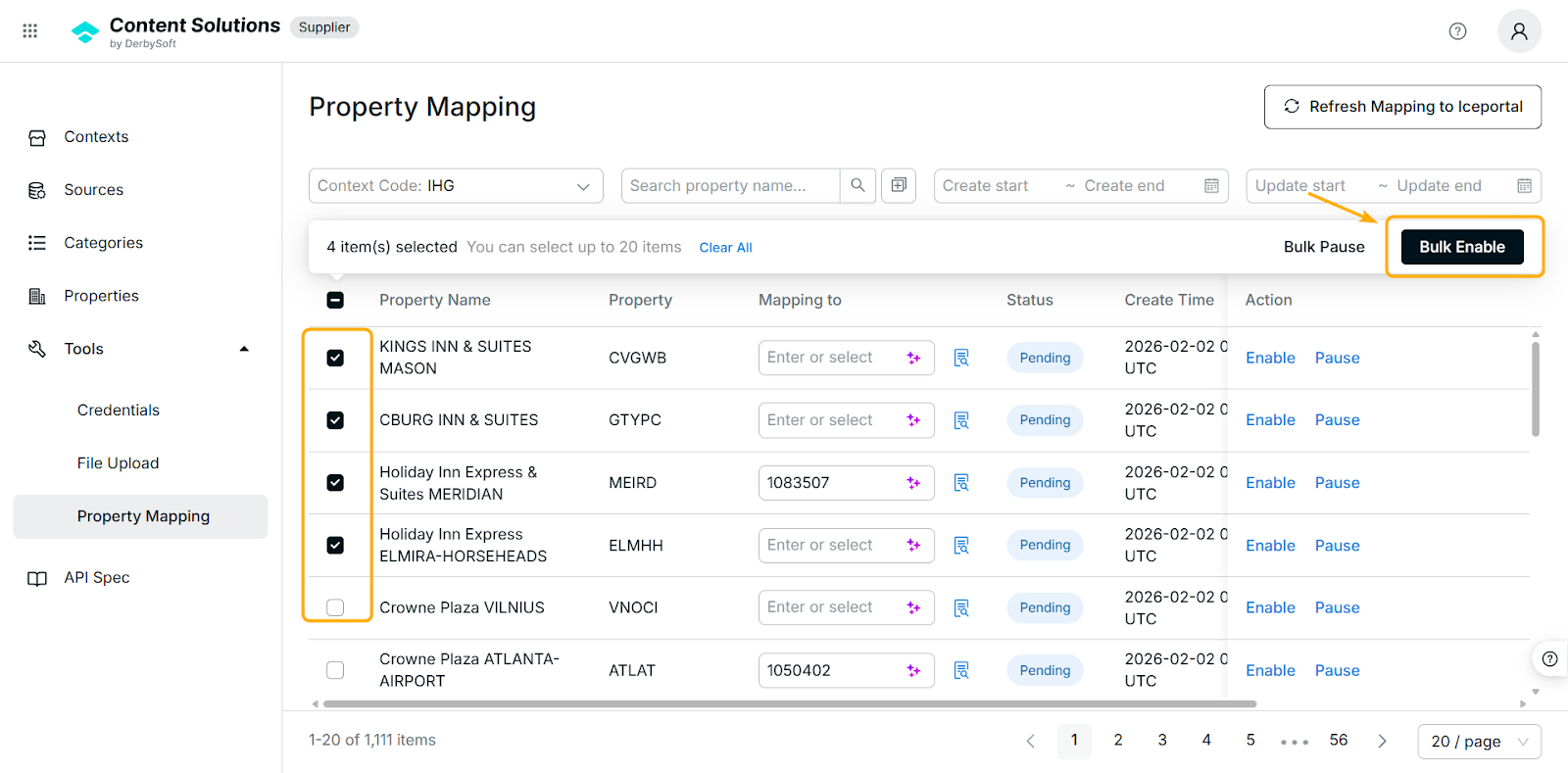
How to Bulk Enable/Pause Property Mappings
You can manage multiple properties at once.
Note:
- If you select properties with different statuses in the same selection, no action buttons will be displayed. Please ensure all selected properties share the same status before performing bulk actions.
- Bulk operations support a maximum of 20 properties per action.
Step 1: Select Properties
Use the checkboxes to select the properties.
Step 2: Choose Action
- Click Bulk Enable to activate mappings
OR
- Click Bulk Pause to stop mappings
The selected properties will update accordingly.
How to Bulk Remap (Leonardo Only)
Available only for:
- Mapping to Leonardo
- Properties with Enabled status
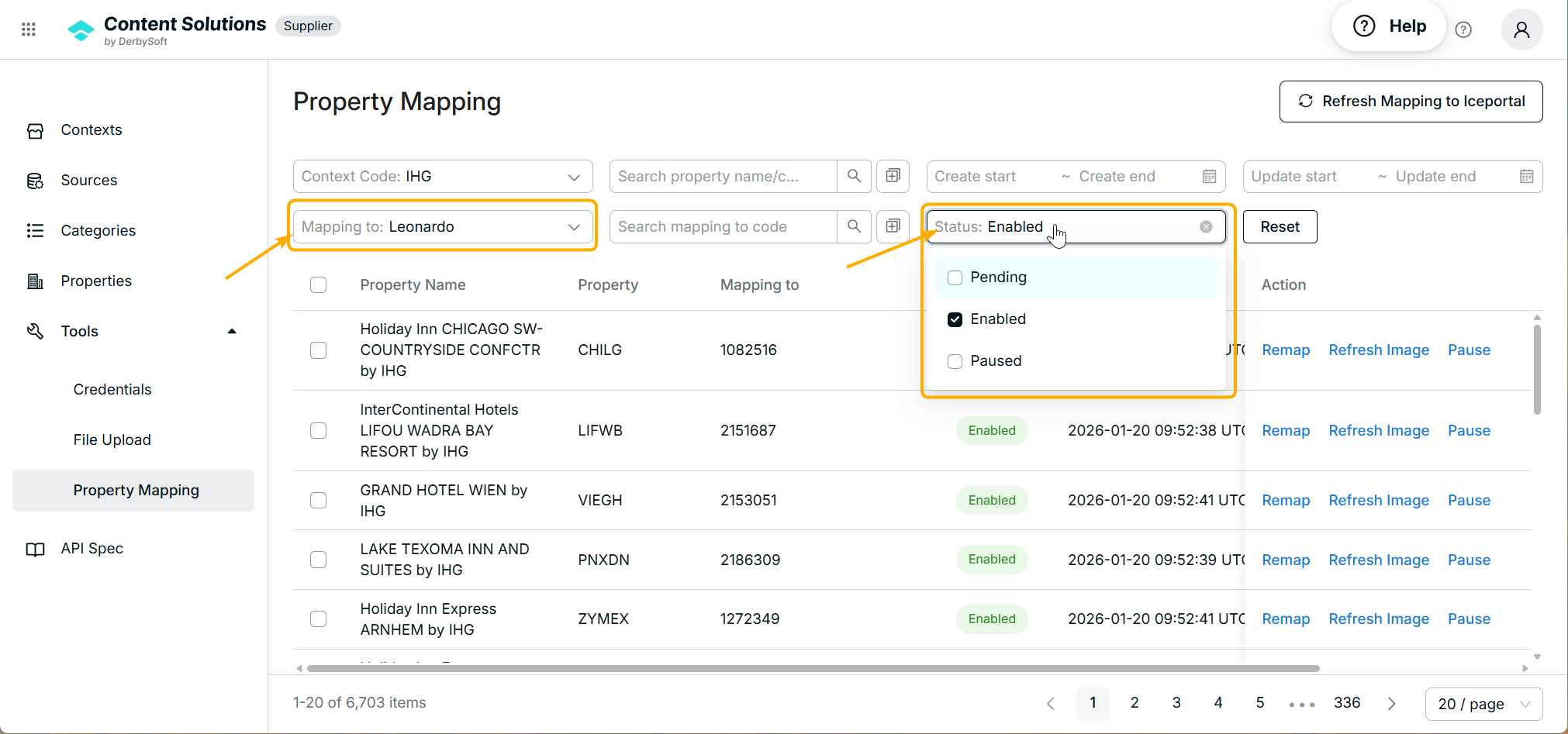
Step 1. Filter Properties
- Set Mapping To = Leonardo
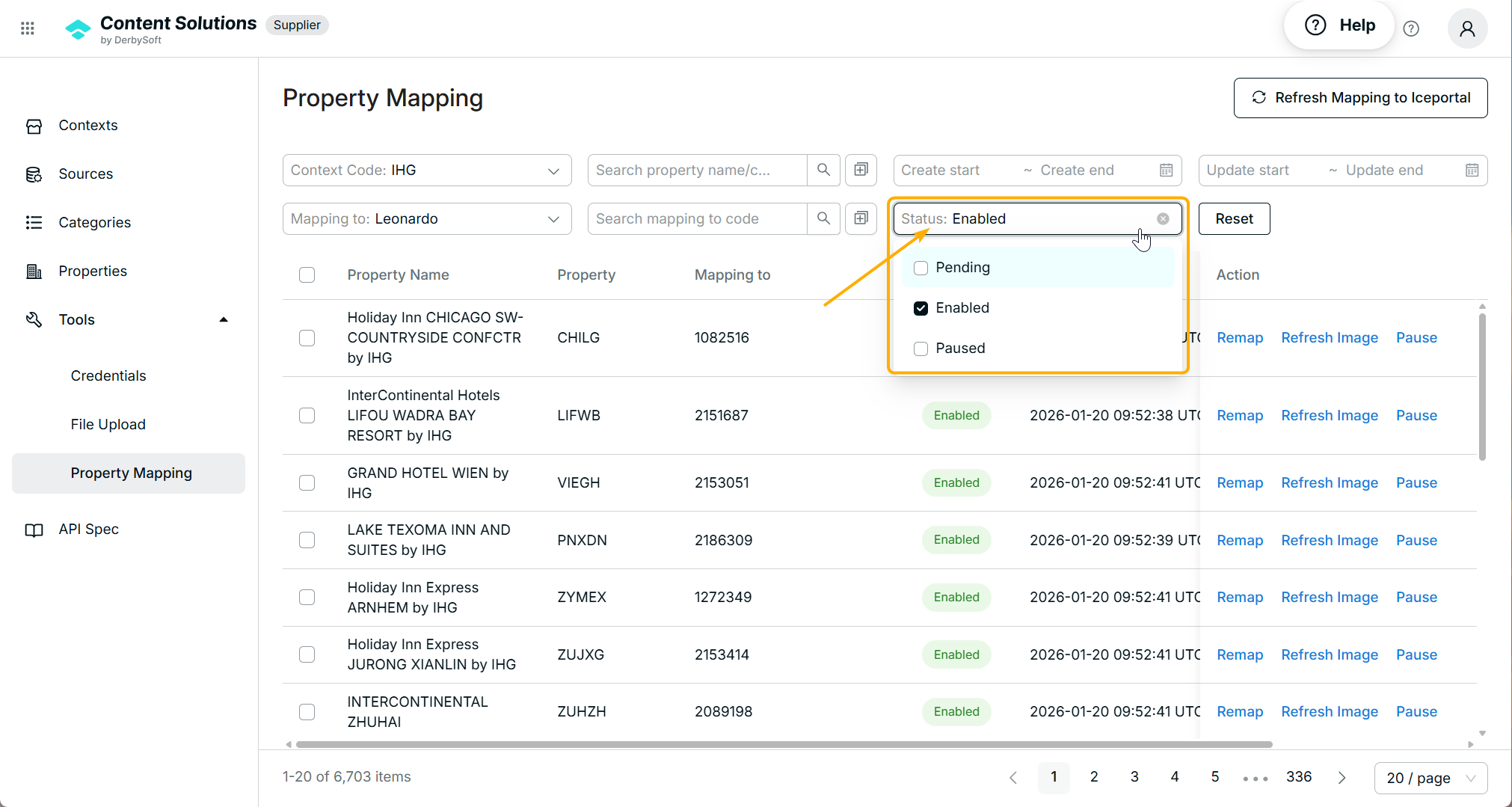
- Set Status = Enabled
Step 2. Select Properties
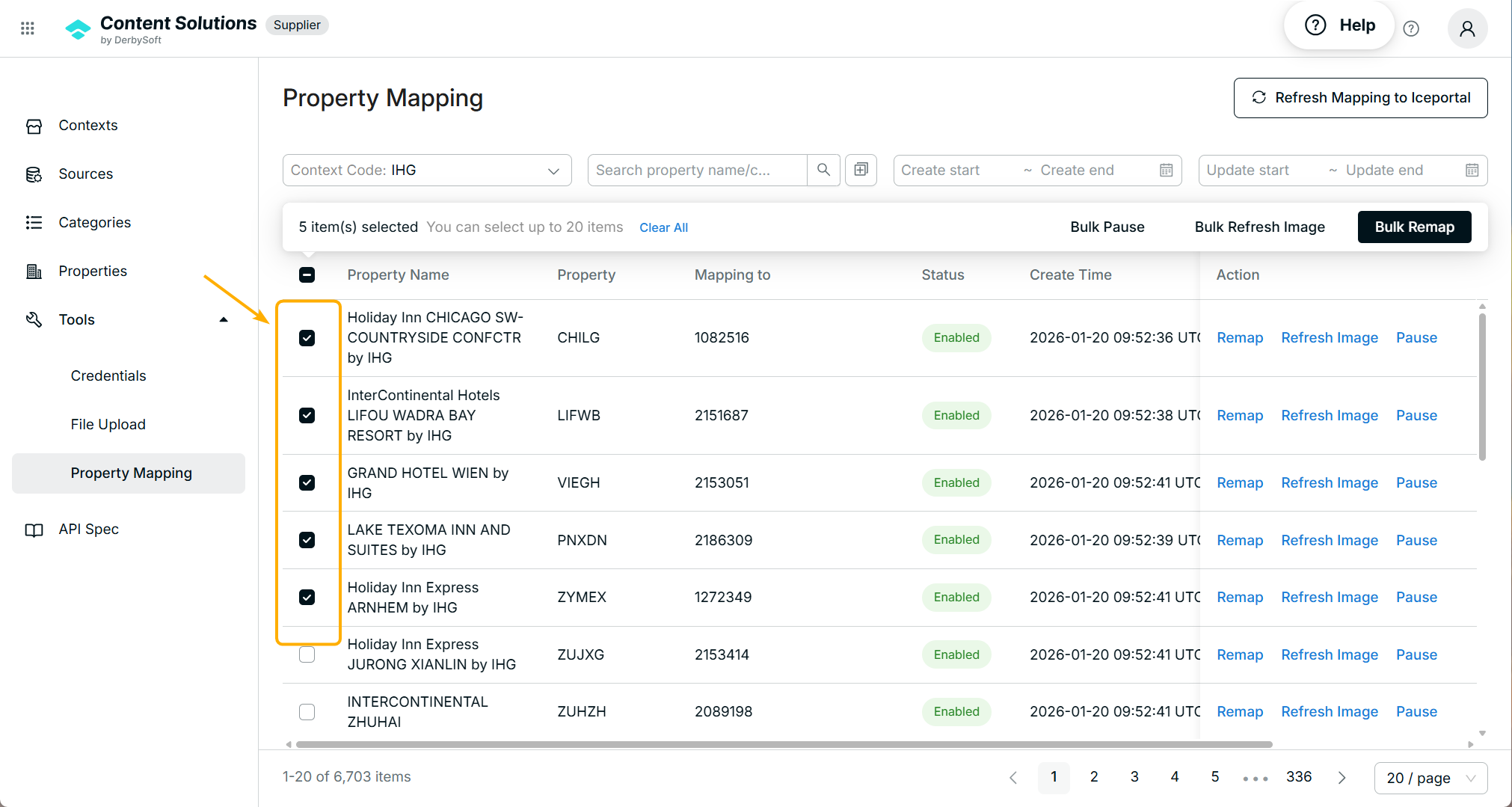
Check the boxes of properties you want to remap.
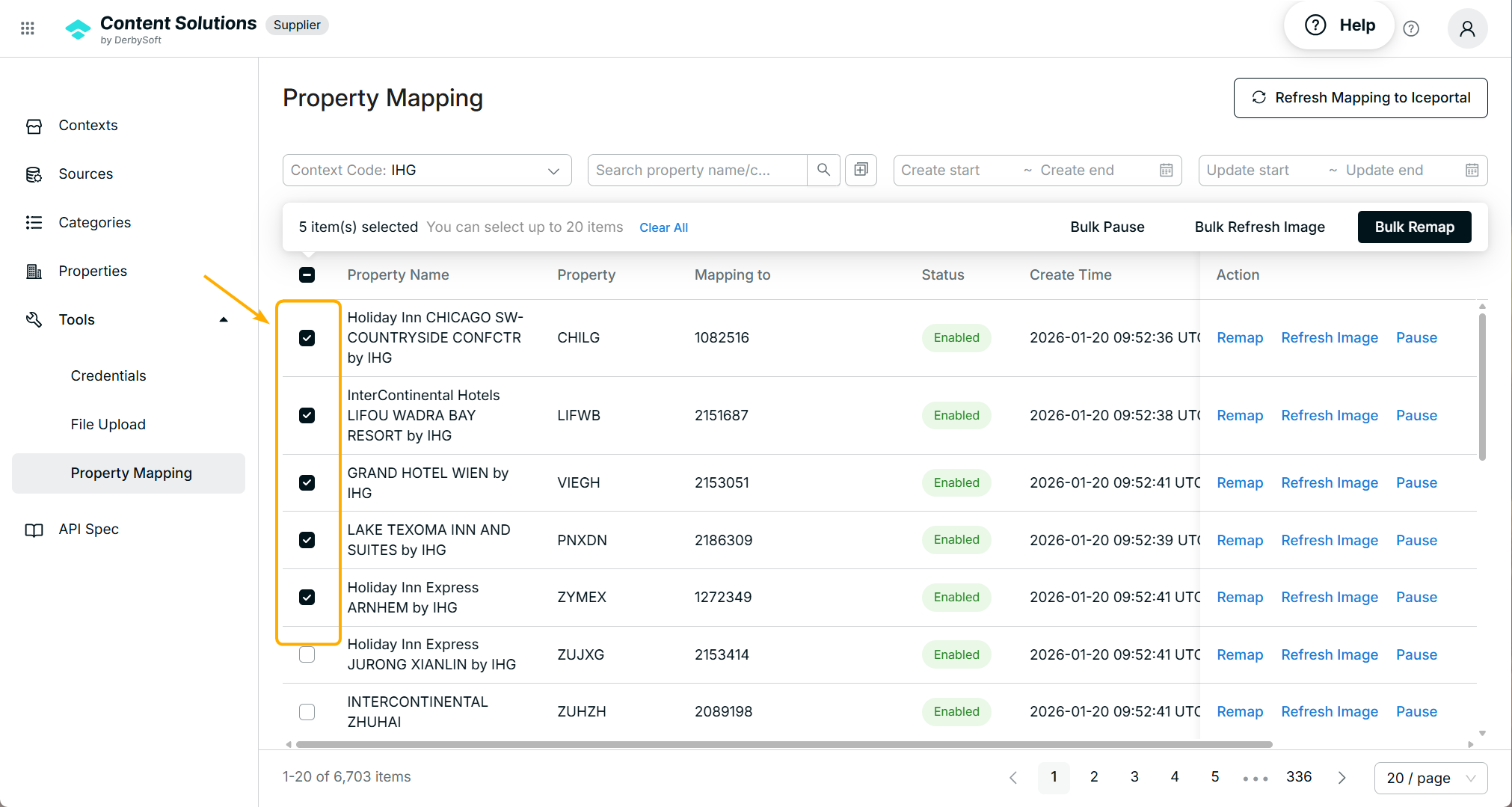
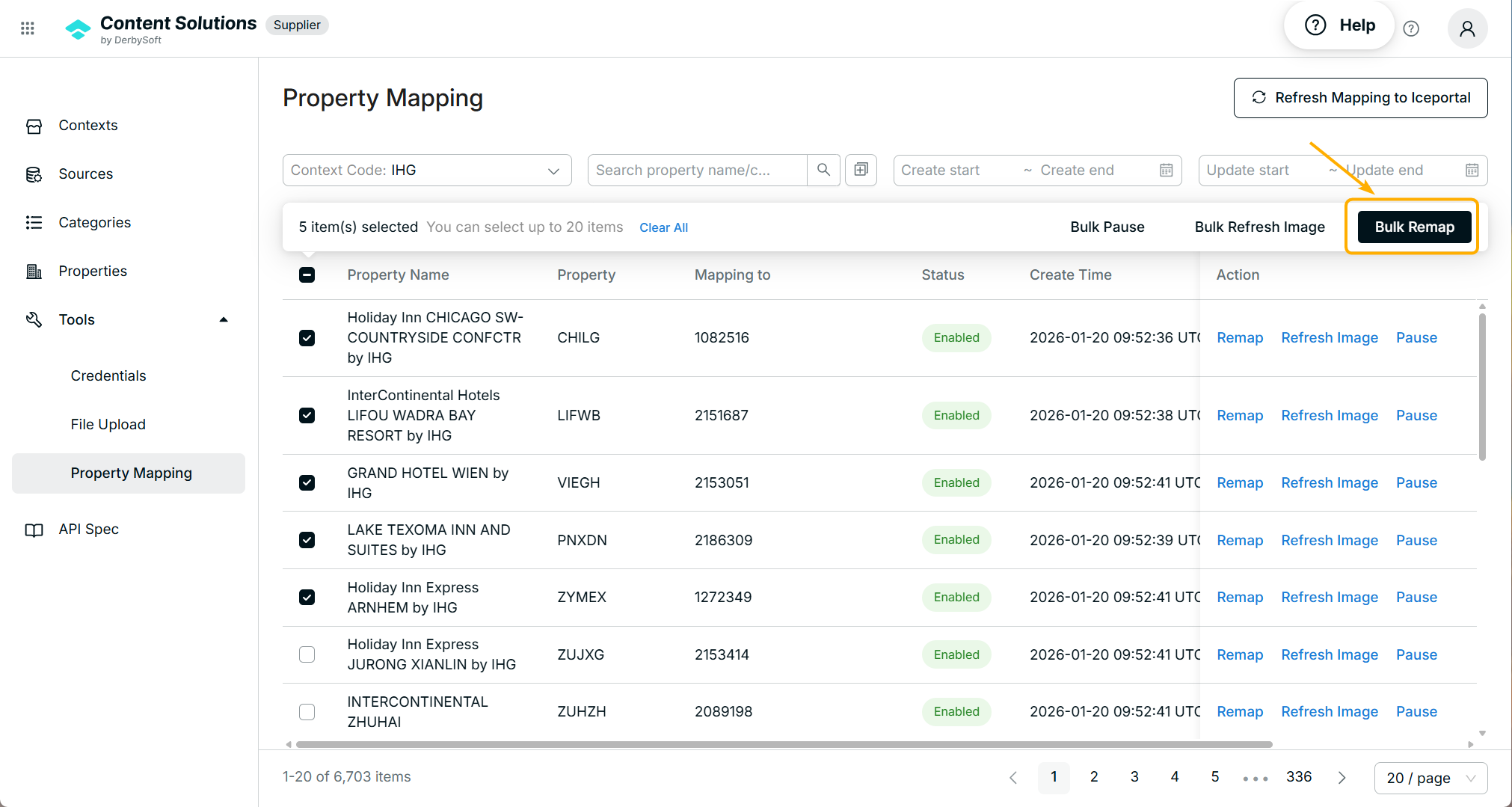
Step 3. Click Bulk Remap
- Click Bulk Remap.
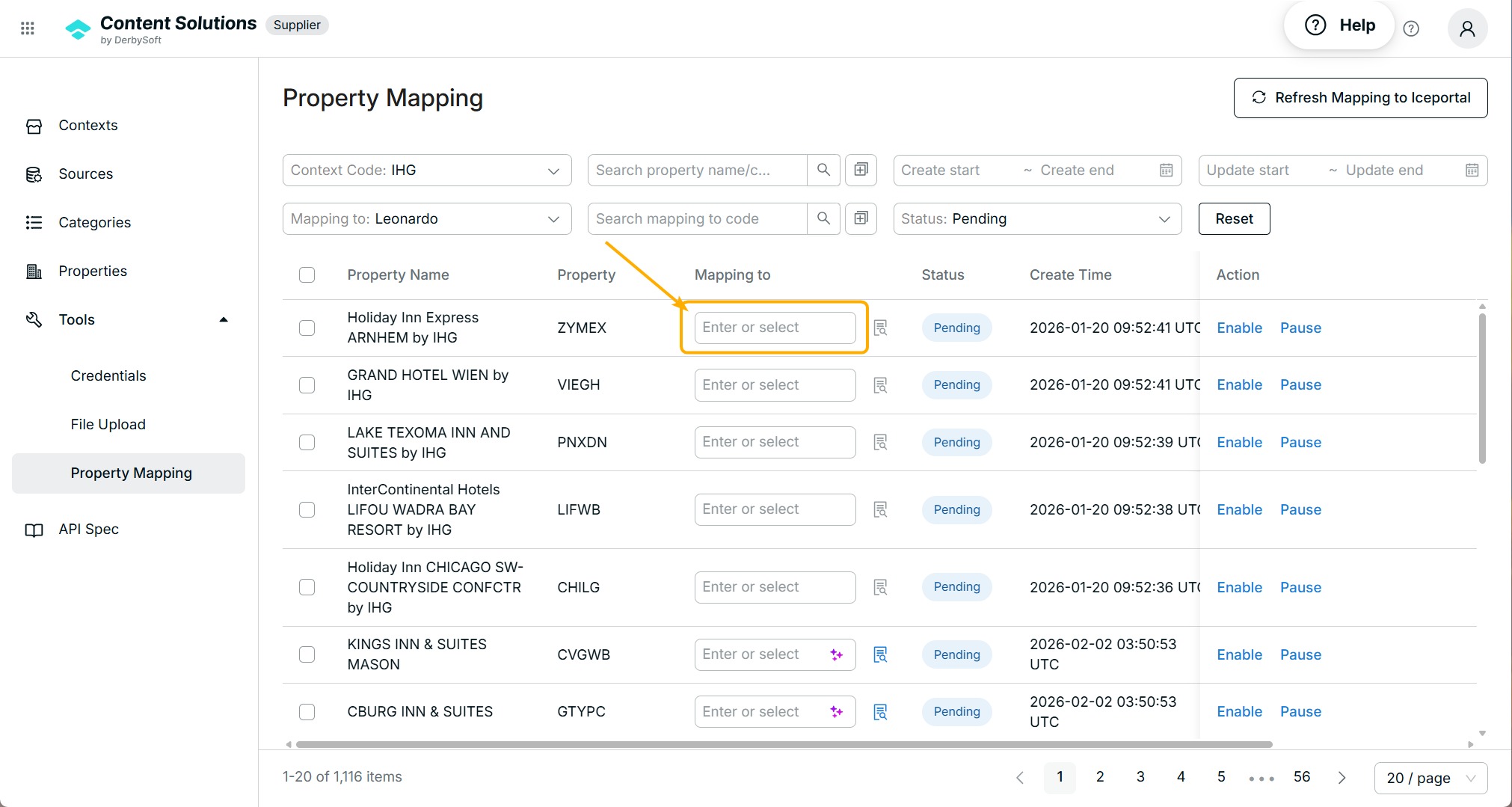
- Selected properties will change to Pending status.
You can now remap them manually.
Important:
- After Bulk Remap, AI suggestions will not be available.
- You must manually enter the property code.
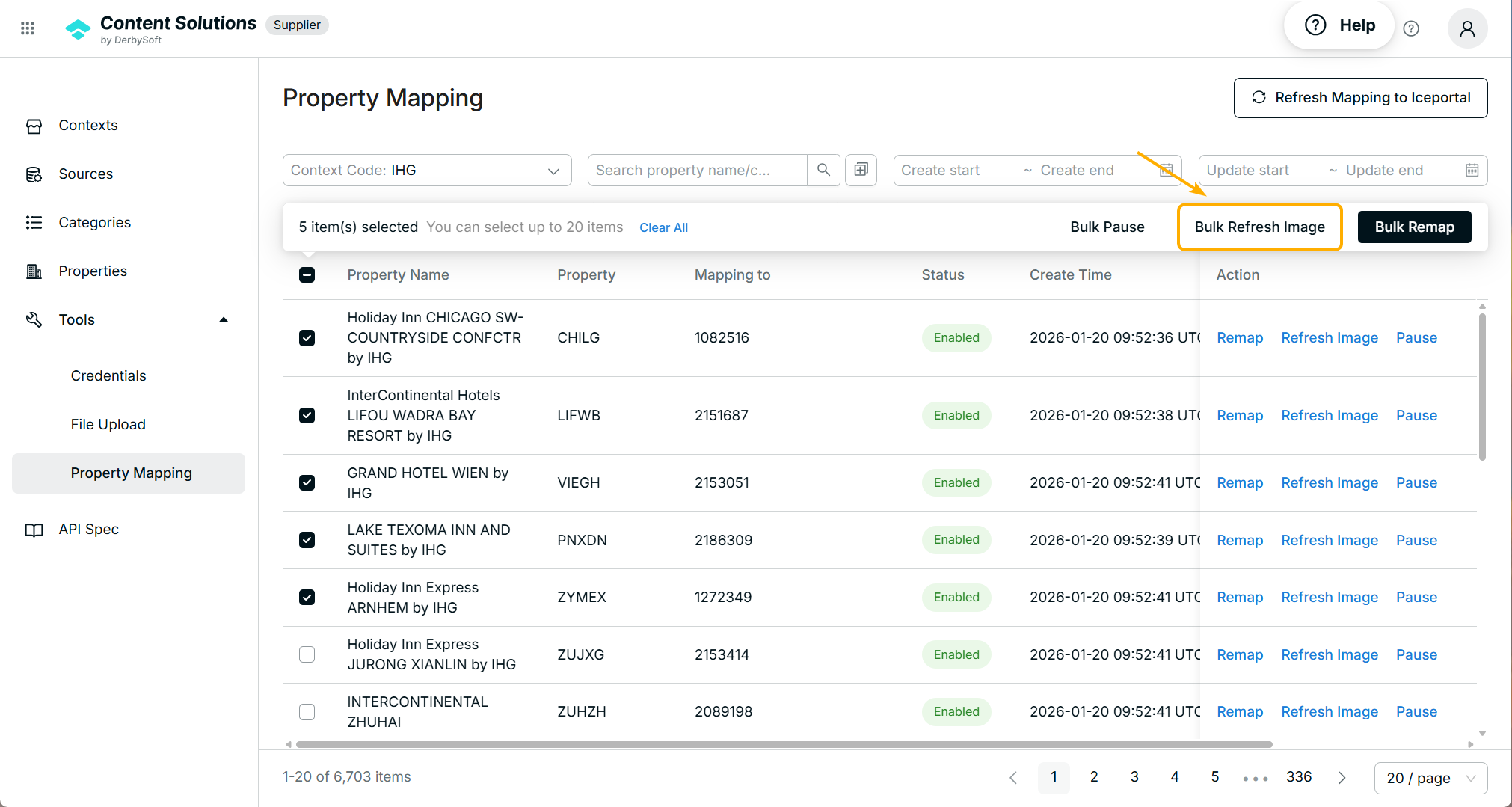
How to Bulk Refresh Image
This feature is only available for enabled mappings.
Step 1. Filter Enabled Properties
Set Status = Enabled in the filter options.
Step 2. Select Properties
Check the boxes for properties you want to refresh.
Step 3. Click Bulk Refresh Image
Click Bulk Refresh Image. The system will notify you of the refresh result.
Related User Guides:
Did you find it helpful? Yes No
Send feedback