File Upload
Modified on: 2026-06-11 15:04
TABLE OF CONTENTS
Overview
This guide walks you through how to upload supplier content files using the File Upload feature on the Content Solutions Supplier portal. Follow these steps to ensure your files are formatted, uploaded, and validated successfully.
Prerequisites
Before you start uploading files, please ensure:
- You are the supplier admin on the Content Solutions Platform.
- Your Context has been created and enabled with the “File Upload” implementation method.
Important:
Only contexts enabled for file upload will be visible.
Step-by-Step Upload Process
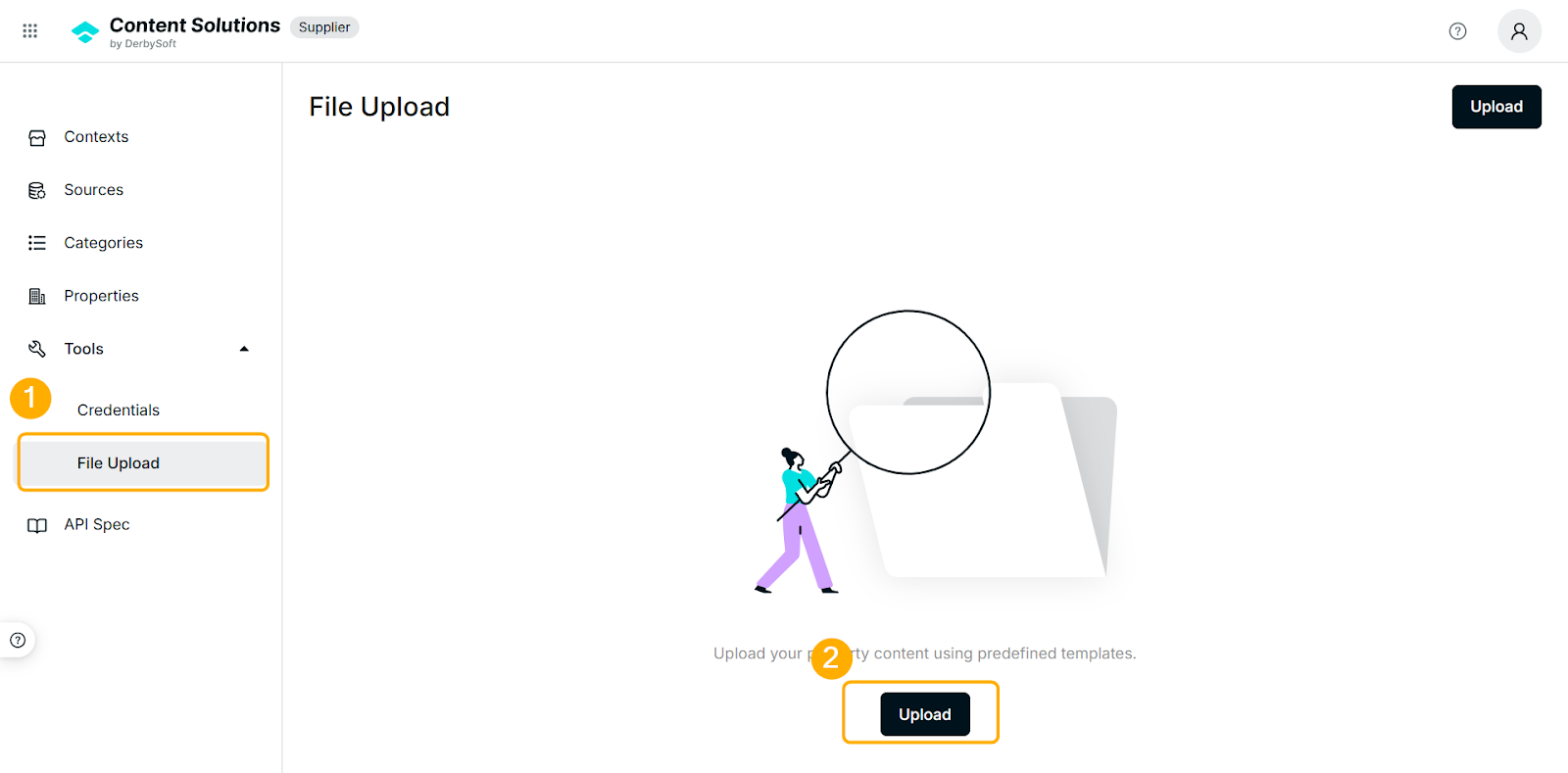
Step 1. Access File Upload Page
Navigate to Tools → File Upload. Click the Upload button to begin.
Step 2. Prepare Your File
- Select Your Context: Choose the relevant Context where your content will be applied
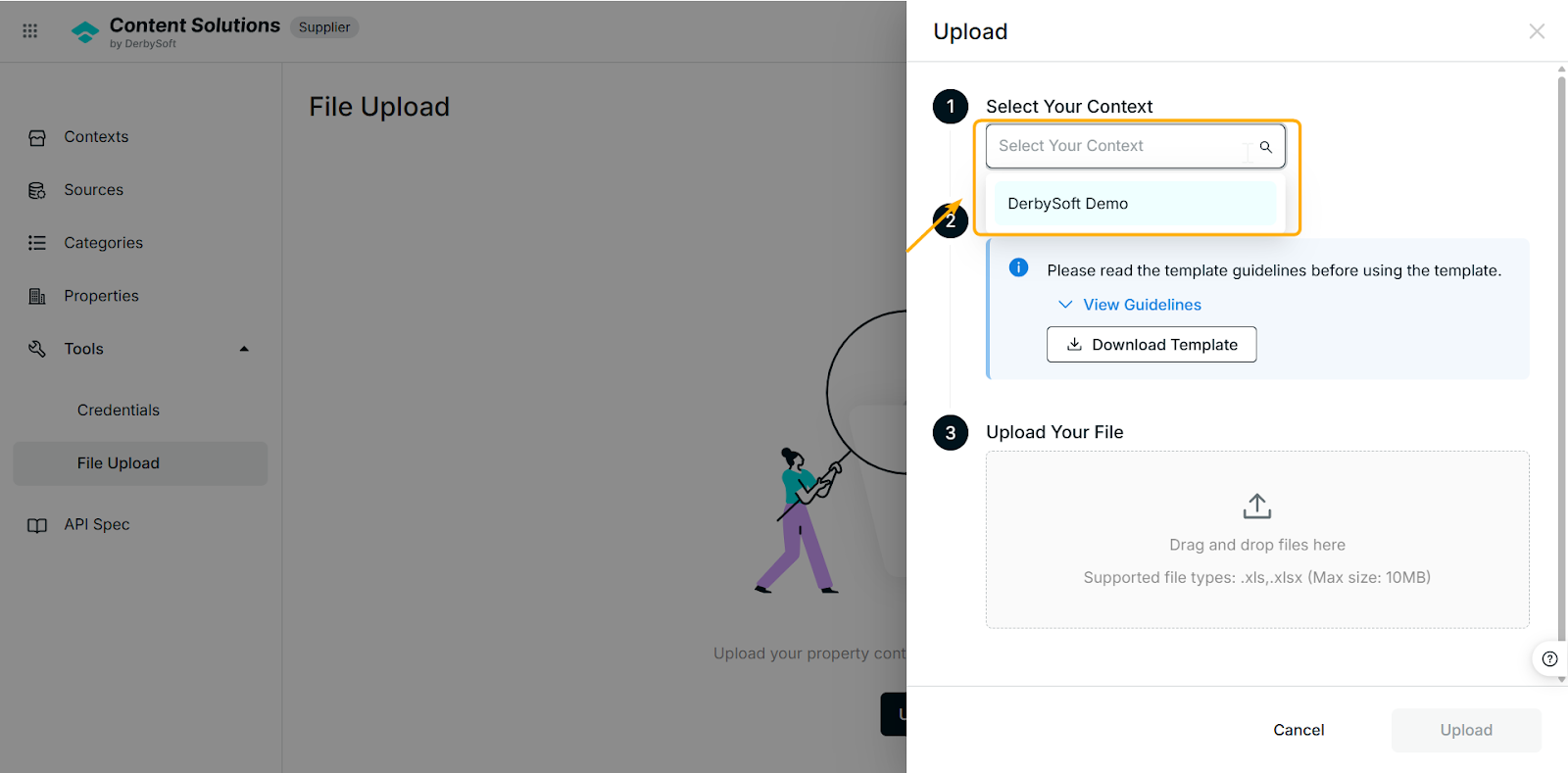
- Download the Template: Click the Download Template button to get the pre-formatted file.
⚠️ Only use the provided template. Custom or modified templates will fail. - Populate the Template: Fill in your supplier content (e.g., property codes, amenities, policies) in the template. Follow these critical specifications to avoid errors:
| File Requirement | Details | Example |
|---|---|---|
| File Format | Only support .xlsx, .xls format | Hilton-20250526.xlsx |
| N/A |
Step 3. Upload Your File
Once your file is ready:
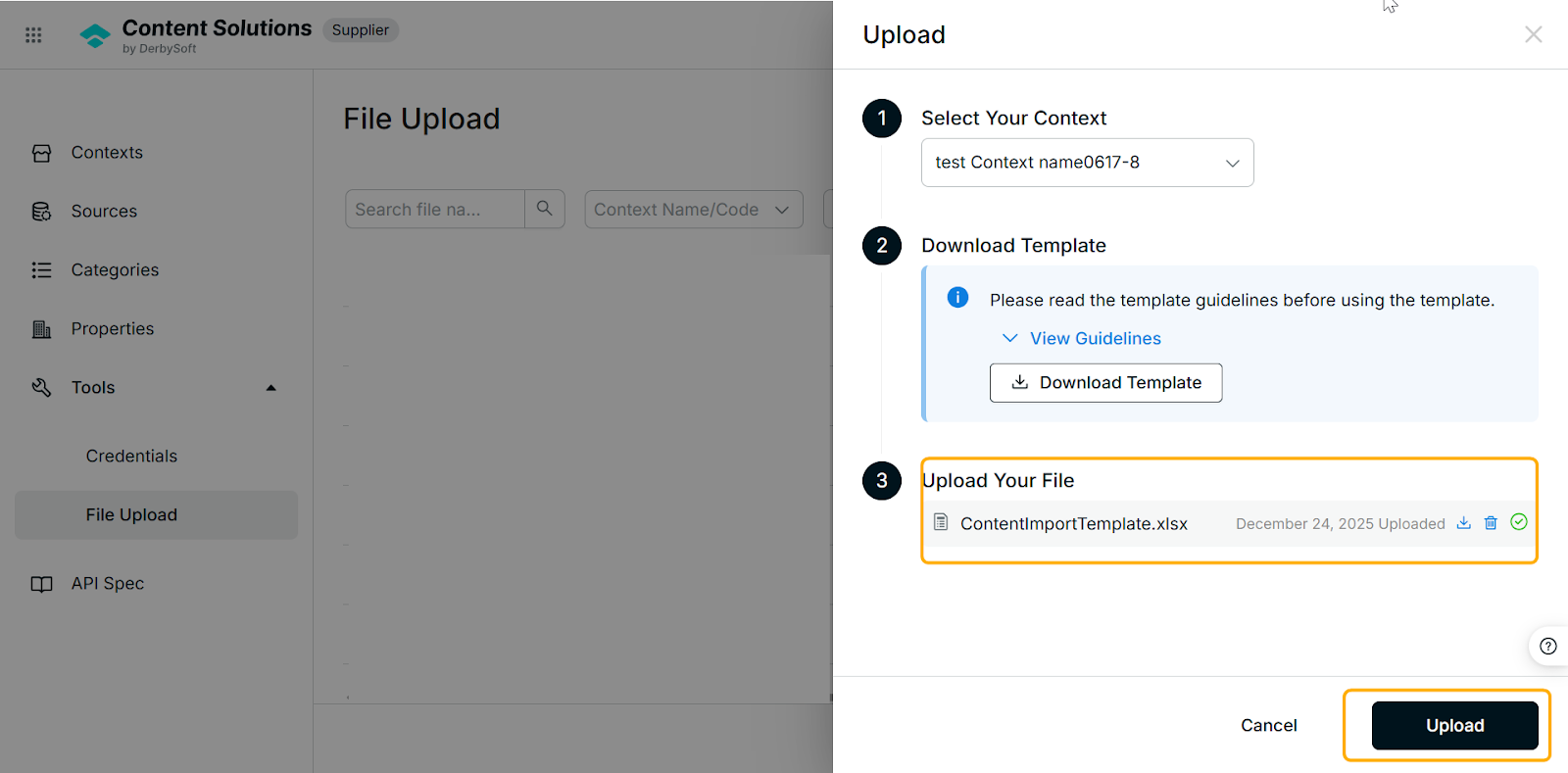
- In the File Upload module, click Upload.
- Select the prepared file from your computer.
- Click Upload to submit.
Note:
The system will validate your file in the background. You would receive the notification email when completed.
Step 4. Check Your Upload History
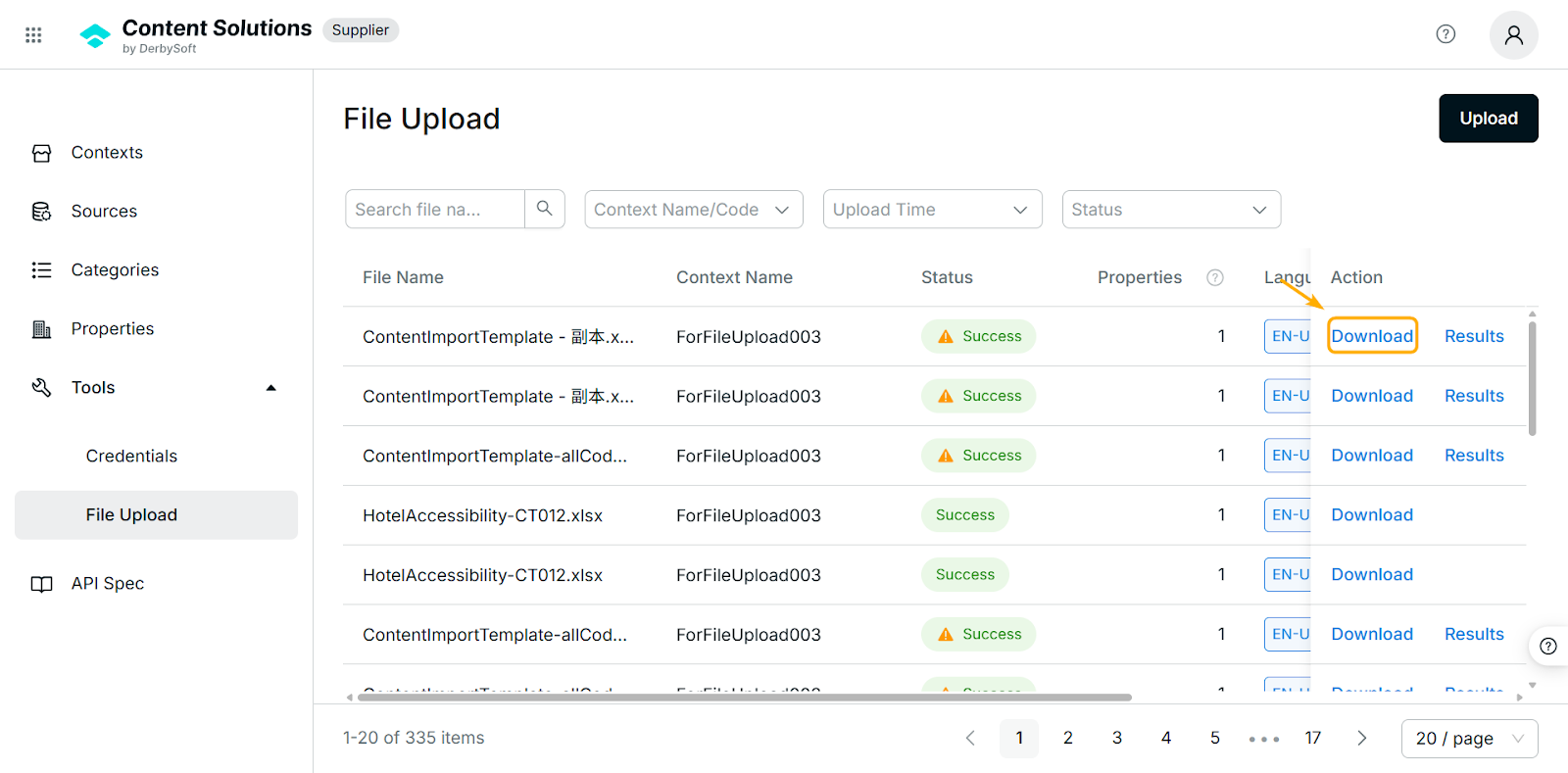
Go to the Tools -> File Upload page.
Tip:
 Only files from the last 90 days are shown (older files are automatically archived).
| Upload Status | Description |
|---|---|
| Success | All rows validated successfully. |
| ⚠️Success | Some rows succeeded; others contain errors. |
| Failed | All rows invalid (e.g., wrong template, missing data). |
| Processing | File validation/import still in progress. |
- Filter Files: Use these filters to find what you need:
- File Name
- Context Name
- Upload Time (Today/This Week/This Month/Last Month/This Year—displayed in UTC)
- Status (Success/Failed/Processing)
- Download Files: Click Download next to any file to retrieve the original uploaded version (available for 90 days).
Step 5. View Detailed Error Reports (For Failed/⚠️Success)
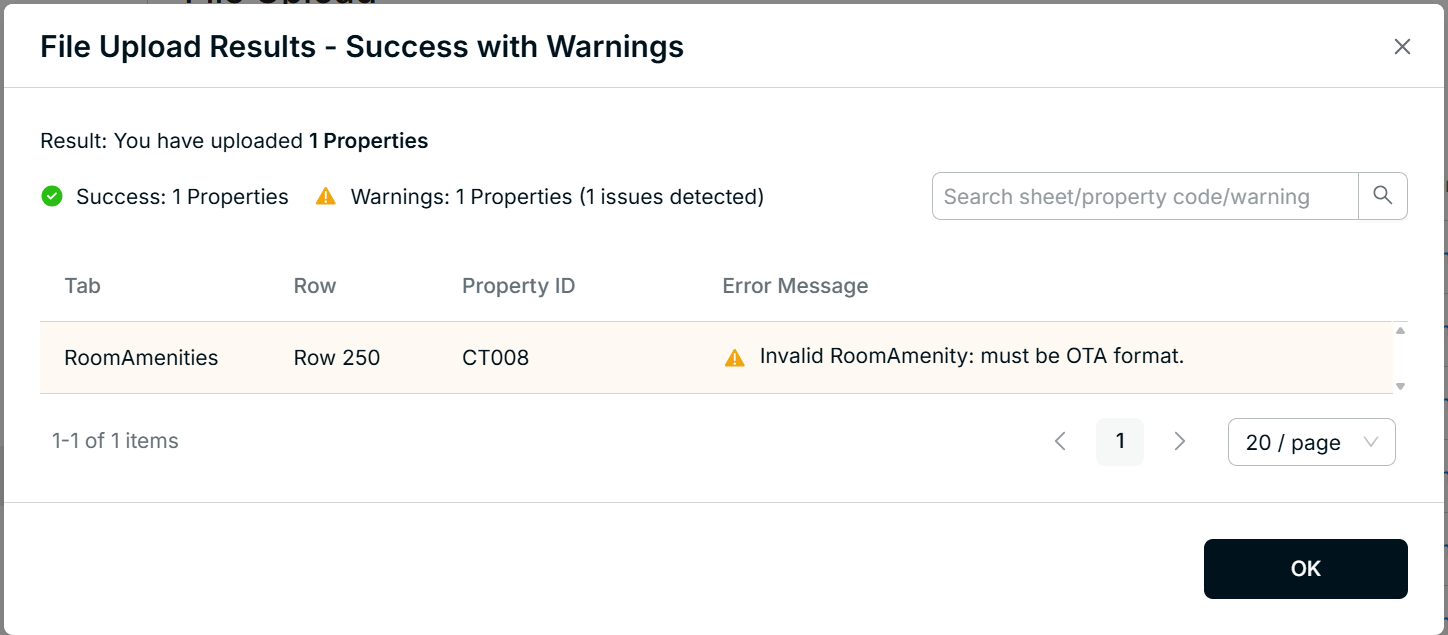
If your file status is Failed or ⚠️Success, you can view a detailed report to fix issues by clicking the Results button under the Action column.
The error report will show exactly where issues occurred:
| Column | Description | Example |
|---|---|---|
| Tab | The tab in your file with the error (e.g., "Basic Information", "RatePlans") | RatePlans |
| Row | The row number in the tab | Row 6 |
| Property Code | The property associated with the error | PropertyCode32 |
FAQ
Q: Is it required to use one Excel file for the entire portfolio, or can we upload at smaller levels (e.g., per hotel or property category) to avoid massive uploads after a small update?
A: You can choose either method. While one Excel file can be used for the entire portfolio, you can also split uploads into smaller batches, such as by individual hotel or property category. For minor updates, you only need to upload the specific updated tab along with the Basic Information tab containing the corresponding hotel code.
Q: Can we update different sections flexibly and separately (e.g., uploading the restaurant section now and editing room service later)?
A: Yes, individual tabs can be updated separately. However, any standalone tab update must include the Basic Information tab to ensure the system can correctly identify the hotel.
Q: Where is room service to fill in the template?
A: Please note that room service content is currently managed through the Room Amenities tab.
Q: Is there a way to identify the character limits for content entered into open text boxes?
A: Currently, only code-related fields have a strict limit of 64 characters. Most other open text boxes do not have strict character limits.
Did you find it helpful? Yes No
Send feedback